Navigation
Generate Code 128 barcodes



Barcodesoft's Code 128 font package delivers professional-grade barcode printing with full ISO/IEC 15417 compliance. Supporting subsets A, B, and C, it encodes the complete ASCII table—including uppercase, lowercase, numeric, and control characters—with automatic checksum calculation. The package includes 28 font variants across seven aspect ratios (XXS to XXL), with optional human-readable text. Available in TrueType, PostScript, PCL, SVG, OpenType, and WOFF formats, these fonts integrate seamlessly into Crystal Reports, MS Excel, and MS Access. For GS1-128, EAN-128, and ISBT-128 applications, the encoder automatically handles FNC1 characters and application identifiers. Try the fully functional demo today.
ISO/IEC 15417 standard specifies Code128.
Code128 barcode can encode alpha-numeric data or numbers.
Code128 has three subsets: code128A, code128B, and code128C.
Code128A is used to encode uppercase alpha and control characters.
Code128B is used to encode both uppercase and lowercase alpha and numeric data.
Code128C is used to encode numeric-only data.
USS Code128 uses subset C.
As mentioned in Wikipedia, this is the mapping table of Barcodesoft Code128 Barcode Font
| Code128 Set A | Code128 Set B | Code128 Set C | Mapping | Code128 Set A | Code128 Set B | Code128 Set C | Mapping |
|---|---|---|---|---|---|---|---|
| Space | Space | 00 | 236 (0xFC) | V | V | 54 | V |
| ! | ! | 01 | ! | W | W | 55 | W |
| " | " | 02 | " | X | X | 56 | X |
| # | # | 03 | # | Y | Y | 57 | Y |
| $ | $ | 04 | $ | Z | Z | 58 | Z |
| % | % | 05 | % | [ | [ | 59 | [ |
| & | & | 06 | & | \ | \ | 60 | \ |
| ' | ' | 07 | ' | ] | ] | 61 | ] |
| ( | ( | 08 | ( | ^ | ^ | 62 | ^ |
| ) | ) | 09 | ) | _ | _ | 63 | _ |
| * | * | 10 | * | NUL | ` | 64 | ` |
| + | + | 11 | + | SOH | a | 65 | a |
| , | , | 12 | , | STX | b | 66 | b |
| - | - | 13 | - | ETX | c | 67 | c |
| . | . | 14 | . | EOT | d | 68 | d |
| / | / | 15 | / | ENQ | e | 69 | e |
| 0 | 0 | 16 | 0 | ACK | f | 70 | f |
| 1 | 1 | 17 | 1 | BEL | g | 71 | g |
| 2 | 2 | 18 | 2 | BS | h | 72 | h |
| 3 | 3 | 19 | 3 | HT | i | 73 | i |
| 4 | 4 | 20 | 4 | LT | j | 74 | j |
| 5 | 5 | 21 | 5 | VT | k | 75 | k |
| 6 | 6 | 22 | 6 | FF | l | 76 | l |
| 7 | 7 | 23 | 7 | CR | m | 77 | m |
| 8 | 8 | 24 | 8 | SO | n | 78 | n |
| 9 | 9 | 25 | 9 | SI | o | 79 | o |
| : | : | 26 | : | DLE | p | 80 | p |
| ; | ; | 27 | ; | DC1 | q | 81 | q |
| < | < | 28 | < | DC2 | r | 82 | r | end bg-white
| = | = | 29 | = | DC3 | s | 83 | s |
| > | > | 30 | > | DC4 | t | 84 | t |
| ? | ? | 31 | ? | NAK | u | 85 | u |
| @ | @ | 32 | @ | SYN | v | 86 | v |
| A | A | 33 | A | ETB | w | 87 | w |
| B | B | 34 | B | CAN | x | 88 | x |
| C | C | 35 | C | EM | y | 89 | y |
| D | D | 36 | D | SUB | z | 90 | z |
| E | E | 37 | E | ESC | { | 91 | { |
| F | F | 38 | F | FS | | | 92 | | |
| G | G | 39 | G | GS | } | 93 | } |
| H | H | 40 | H | RS | ~ | 94 | ~ |
| I | I | 41 | I | US | DEL | 95 | à (0xF0) |
| J | J | 42 | J | FNC3 | FNC3 | 96 | á (0xF1) |
| K | K | 43 | K | FNC2 | FNC2 | 97 | â (0xF2) |
| L | L | 44 | L | Shift | Shift | 98 | ã (0xF3) |
| M | M | 45 | M | Code C | Code C | 99 | ä (0xF4) |
| N | N | 46 | N | Code B | FNC4 | Code B | å (0xF5) |
| O | O | 47 | O | FNC4 | Code A | Code A | æ (0xF6) |
| P | P | 48 | P | FNC1 | FNC1 | FNC1 | ç (0xF7) |
| Q | Q | 49 | Q | Start A | Start A | Start A | è (0xF8) |
| R | R | "50" | R | Start B | Start B | Start B | é (0xF9) |
| S | S | 51 | S | Start C | Start C | Start C | ê (0xFA) |
| T | T | 52 | T | Stop | Stop | Stop | ë (0xFB) |
| U | U | 53 | U |
Code128 has many variations, such as EAN128, ISBT128, and GS1128.
Since 2004, use of GS1128 symbology has become mandatory for printing labels of Confirmation Services.
Code128 barcode is able to encode the entire ASCII table.
With Barcodesoft Keyboard Wedge Emulation program and a USB scanner, you can emulate any special character input into your system.
A check digit is always required by Code128.
When you use Barcodesoft Code128 font to print bar code, please use our Encoder to calculate checksum for you.
You can also find checksum calculation source code in VBA and C language.
There are 28 code128 barcode fonts in the package, as listed below.
Each font shows an aspect ratio by its name. Those code128 fonts with "Hr" in their names have human readable text underneath barcode.
For example, Code128AmHr means ‘medium aspect ratio’, with human readable.
Code128XXL means ‘XXL aspect ratio’, without human readable.
Barcodesoft Code128 Demo has "Demo" watermark.
Barcodesoft Code128 barcode fonts are available in true type, PostScript, PCL, SVG, Open Type (eot), and Web Open Font Format (woff / woff2).
Users can embed Code128 fonts into Adobe PDF files.
Here is the list of Barcodesoft Code128 Barcode Fonts
| Aspect Ratio | No Human Readable | Set A with HR | Set B with HR | Set C with HR |
|---|---|---|---|---|
| XXS | Code128XXSHr | Code128AXXS | Code128BXXS | Code128CXXS |
| XS | Code128XSHr | Code128AXS | Code128BXS | Code128CXS |
| S | Code128SHr | Code128AS | Code128BS | Code128CS |
| M | Code128MHr | Code128AM | Code128BM | Code128CM |
| L | Code128LHr | Code128AL | Code128BL | Code128CL |
| XL | Code128XLHr | Code128AXL | Code128BXL | Code128CXL |
| XXL | Code128XXLHr | Code128AXXL | Code128BXXL | Code128CXXL |
This is the pricing list of Barcodesoft Code128 package
| License | Single User | 5-User | 10-User | Site | Corporate | Developer | 5-Developer | 10-Developer | Unlimited Developer |
|---|---|---|---|---|---|---|---|---|---|
| Price | CAD299 | CAD399 | CAD599 | CAD799 | CAD999 | CAD1199 | CAD1399 | CAD1999 | CAD2999 |
Generate Code 128 Barcode in Crystal Reports
How to generate a Code 128 barcode in Crystal Reports?
To generate a Code 128 barcode in Crystal Reports, create a new formula field using the BCSLinearCode128 function from the Barcodesoft UFL library. Pass your database fields as arguments, place the formula field on your design canvas, and apply the Code128MHr font family.
-
Step 1: Determine SAP Crystal Reports Bitness and Register DLL
Determine the bitness of your SAP Crystal Reports version. SAP Crystal Reports 2008 through 2016 are 32-bit, while SAP Crystal Reports 2020 and 2025 are 64-bit.
For 64-bit Crystal Reports (2020 / 2025):
Run Command Prompt as Administrator and execute:
                                        cd "C:\Program Files\Common Files\Barcodesoft\FontUtil"

                                        %systemroot%\System32\regsvr32.exe cruflbcs_x64.dll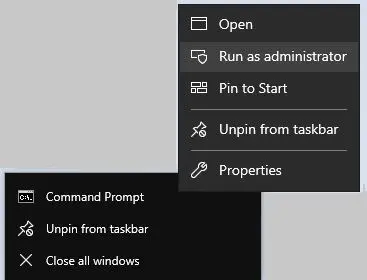
For 32-bit Crystal Reports (2008–2016):
Run Command Prompt as Administrator and execute:
                                        cd "C:\Program Files\Common Files\Barcodesoft\FontUtil"

                                        regsvr32.exe cruflbcs.dll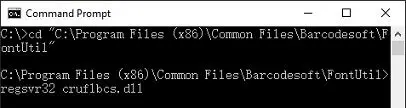
-
Step 2: Create a New Code 128 Formula Field
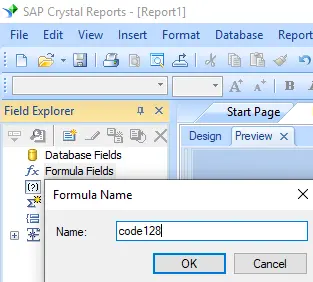
Open your Crystal Report layout. Right-click Formula Fields in the Field Explorer pane and select New... from the context menu. Type "code128" in the Name textbox, then click the Use Editor button.
-
Step 3: Locate the Barcodesoft Code 128 Function
In the Formula Workshop, navigate to the Additional Functions directory and double-click the
BCSLinearcode128function listing located under the Visual Basic UFLs node.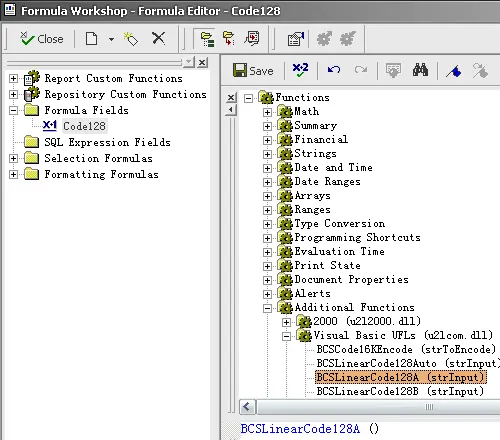
-
Step 4: Use Your Database Field as a Parameter
Provide your target database field as the primary string parameter inside the formula brackets. Click the Save button to validate and preserve your new formula logic configuration.
-
Step 5: Insert code 128 Formula Field Into Your Report Canvas
Drag your newly saved
code128formula field out of the Field Explorer and drop it onto the design view grid canvas area where you want the barcode to appear.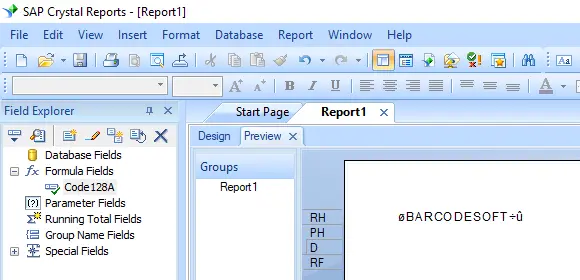
-
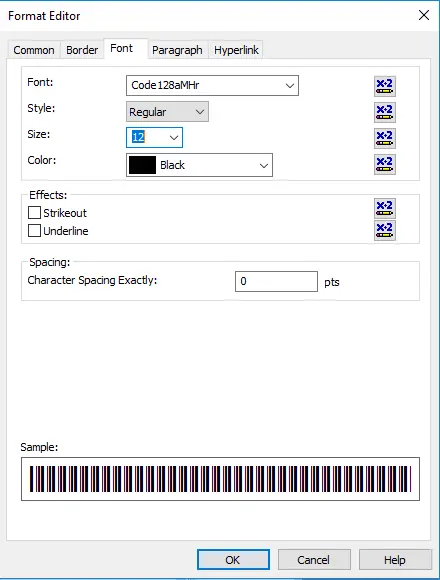
Step 6: Apply the Code128MHr Font Typeface
Right-click the placed formula text block object on your canvas and choose Format Field from the context menu. In the Font customization tab pane, select "code128mHr" from the font family drop-down menu selection list.
-
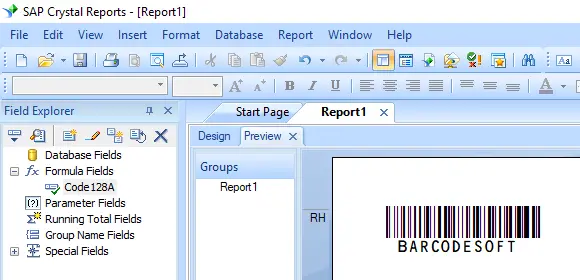
Step 7: Verify Code 128 Barcode Generation
Click the OK button to apply changes. The text string placeholders will immediately transform and render as an active, readable Code 128 linear barcode inside your report template preview layout.
Integrate Code128 Barcode With MS Excel
This implementation configures dynamic code 128 barcode encoding within spreadsheets by **registering the COM DLL interface** (cruflbcs_x64.dll for 64-bit systems or cruflbcs.dll for 32-bit environments) through an elevated command prompt. After **enabling all macros** inside the Excel Trust Center, open the VBA Editor using ALT + F11 to **bind the crUFLBcs Type Library reference** and import the barcodesoft.bas module. Data streams are then instantly converted using **native column formulas** like =Code128B(A1) and rendered visually by assigning the specialized Code128mHr barcode font typeface.
Step 1. Right click command prompt and run command prompt as administrator.
cd "C:\Program Files\Common Files\Barcodesoft\FontUtil"
%systemroot%\System32\regsvr32.exe cruflbcs_x64.dllcd "C:\Program Files (x86)\Common Files\Barcodesoft\FontUtil"
regsvr32.exe cruflbcs.dll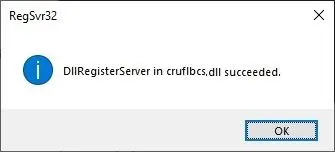
Step 2. Start Microsoft® Excel®. If you are using Excel 2000 or 2003, click menu ===> Tools ==> Macro ===> Security. Choose Low security level.
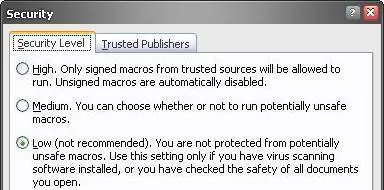


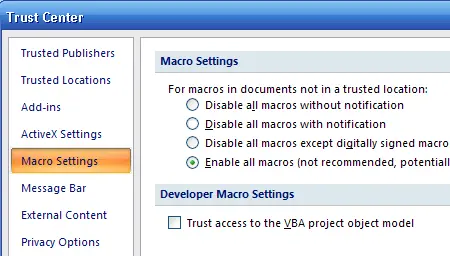
Step 3. Press ALT + F11 to open Microsoft® Visual Basic editor.
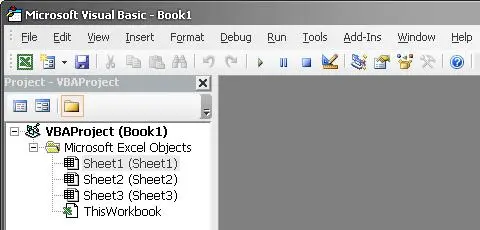
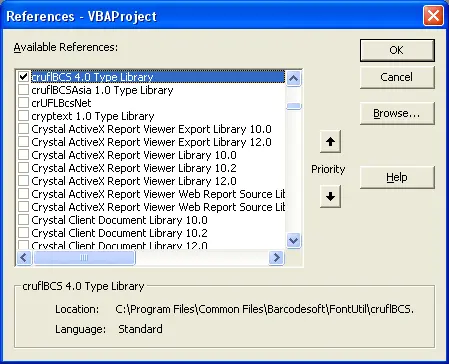
Step 4. From Visual Basic editor, choose menu Tools ===> References. It will popup a dialog. Click Browse button and choose cruflbcs.dll from your working folder. Usually it's under C:\Program Files (x86)\Common Files\Barcodesoft\Fontutil folder. Click the checkbox beside crUFLBcs 1.0 Type Library as shown below. Then click OK button.
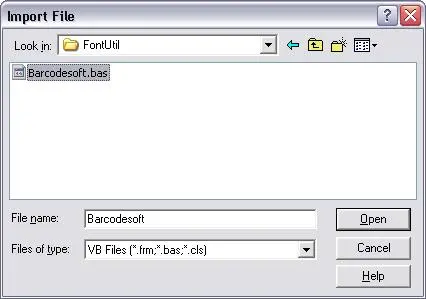
Step 5. Press Ctrl+M, it will popup a dialog, choose barcodesoft.bas under C:\Program Files (x86)\Common Files\Barcodesoft\Fontutil folder. Then click "Open". If you don't find barcodesoft.bas, please download it from Code128.
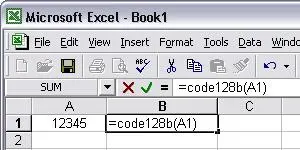
Step 6. Close Visual Basic editor and go back to your spreadsheet. Now, you can use the following macros to encode data: Code128 . When you have lots of data to process, you can just copy and paste the macro to the whole column and all data will be encoded immediately.
=Code128A(xxx)
=Code128B(xxx)
=Code128C(xxx)
Please use cell reference to replace xxx in the formulas as shown below.
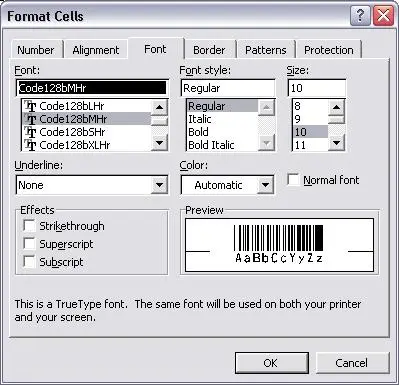
Step 7. Right click Cell B1, choose Format Cell from context menu. Then click Font to apply one of the appropriate font typefaces to the cell, such as Code128mHr.
Integrate Code128 Barcode With MS Access
This implementation configures automated code 128 barcode generation in database reports by **registering the underlying COM DLL framework** (cruflbcs_x64.dll for 64-bit platforms or cruflbcs.dll for 32-bit setups) using an elevated command prompt. After **lowering macro restrictions** within the Access Trust Center workspace, open the VBA backend via ALT + F11 to **link the crUFLBcs Type Library reference** and import the global barcodesoft.bas functions module. Finally, navigate to your report Design View, **bind the target textbox control source** using a table-mapped encoding expression like =Code128B([TableName].[FieldName]), and change the control typeface properties to the specialized Code128mHr barcode font.
Step 1. Right click command prompt and run command prompt as administrator.
To register 64-bit DLL, please type in the following commands
cd "C:\Program Files\Common Files\Barcodesoft\FontUtil"
%systemroot%\System32\regsvr32.exe cruflbcs_x64.dll
Type in the following commands to register 32-bit cruflbcs.dll
cd "C:\Program Files (x86)\Common Files\Barcodesoft\FontUtil"
regsvr32.exe cruflbcs.dll
If you see the following Window pop up, your registration was successful.
Step 2. Start Microsoft® Access®.
If you are using Access 2000 or 2003, click menu ===> Tools ==> Macro ===> Security. Choose Low security level.
If you are using Access 2010 / 2013 / 2016 / 2019 / 2021 / 2024, click the Microsoft Office Button.


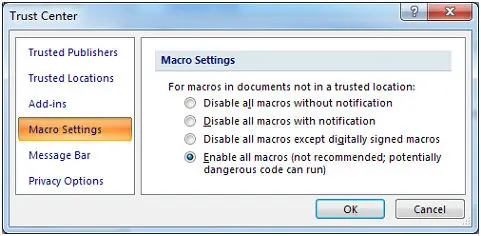
Then click Access Options, choose Trust Center. In the Macro Settings category, under Macro Settings, choose "Enable all macros" as shown below.
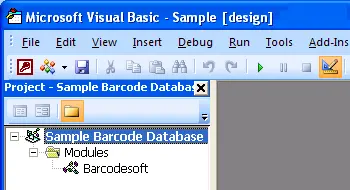
Step 3. Press ALT + F11 to open Microsoft® Visual Basic editor.
Step 4. From Visual Basic editor, choose menu Tools ===> References. It will popup a dialog. Click Browse button and choose cruflbcs.dll from your working folder. Usually it's under C:\Program Files (x86)\Common Files\Barcodesoft\Fontutil folder. Click the checkbox beside crUFLBcs 4.0 Type Library as shown below. Then click OK button.
Step 5. Press Ctrl+M, it will popup a dialog, choose barcodesoft.bas under C:\Program Files (x86)\Common Files\Barcodesoft\Fontutil folder. Then click "Open".
If you don't find barcodesoft.bas, please download it from code128.
=Code128A([data.code]) =Code128B([data.code]) =Code128C([data.code])
Please notice that 'data' is the Table name, 'code' is the Field name.