Navigation
UPC-A Barcode
Generate UPC-A Barcodes
Implement seamlessly across Crystal Reports, MS Excel, and MS Access



UPC-A barcodes, or GTIN-12, encode 11 data digits plus a check digit, with the leading digit indicating the number system. They are a subset of EAN-13 (which begins with zero). Retailers use the same UPC for identical products across stores. Barcodesoft offers UPC-A fonts in various aspect ratios (e.g., Medium, XXL) and formats (TrueType, PCL, SVG, WOFF). A check digit is required and can be generated using their Encoder or provided code (VBA/C). The demo version includes a watermark. These fonts are embeddable in PDFs for professional barcode printing.
Overview
UPC-A barcode is everywhere today.
Retailers use ‘Universal Product Code’ (UPC) to identify products in store. The same products being sold at different retail stores share the same UPC.
The leading digit of a UPC is called “number system”. Next five digits of a UPC are called “manufacturer code”. Then another five digits are called “Product Code”. The last digit is a check digit.
A UPCA barcode encodes 11 digits of numbers plus a check digit. UPC-A can be considered being a subset of EAN13 with the first number system digit set to zero.
What UPC-A encodes is also called GTIN12.
UPCE encodes eight digit data plus a check digit. What UPCE encodes is also called GTIN8.
Here is the mapping table of UPCA barcode font
Upc-a barcode font mapping table
| Character | Mapping | Character | Mapping |
|---|---|---|---|
| Start | [ | Stop | ] |
| Supplement Start | { | Supplement Stop | } |
| Central Guard | | | Supplement Separator | \ |
| Text Only | 0xE0 - 0xE9 | UPCE Stop Character | ' |
| Lefthand B with HR | PQWERTYUIO | Lefthand B without HR | pqwertyuio |
| Righthand with HR | :ASDFGHJKL | Righthand without HR | ;asdfghjkl |
| Lefthand A with HR above | /zxcvbnm,. | Lefthand B with HR above | ?ZXCVBNM<> |
| Lefthand A with HR below | 0123456789 | Lefthand A without HR below | ~!#&40;#$%^&*(<> |
If you use Barcodesoft UPCA fonts to print bar code, please use our Encoder to calculate the check digit for you. You can also find source code in VBA and C language.
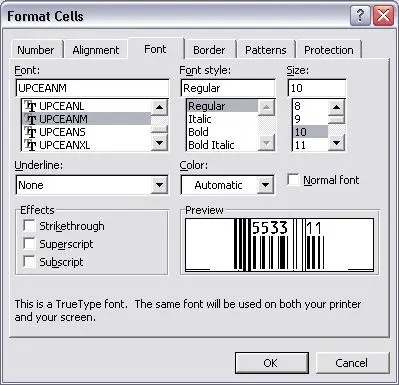
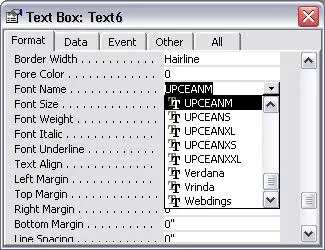
There are six fonts in the package, as listed below. Each font shows its aspect ratio by font name. For example, UpcEanM means ‘medium aspect ratio’.
UpcEanXXL means ‘XXL aspect ratio’.
Here is the list of Barcodesoft UPCA Barcode Fonts
| Aspect Ratio | Font |
|---|---|
| XS | UPCEANXS |
| S | UPCEANS |
| M | UPCEANM |
| L | UPCEANL |
| XL | UPCEANXL |
| XXL | UPCEANXXL |
Barcodesoft UPCA barcode fonts are available in true type, PostScript, PCL, SVG, Open Type (eot), and Web Open Font Format (woff / woff2). Users can embed Code128 fonts into Adobe PDF files.
Here is the list of Barcodesoft UPCA Barcode Fonts
Barcodesoft Upc-A Barcode Fonts Pricing
| License Type | Single | 5-User | 10-User | Site | Corporate | Dev | 5-Dev | 10-Dev | Unlimited |
|---|---|---|---|---|---|---|---|---|---|
| Price | CAD159 | CAD299 | CAD399 | CAD599 | CAD799 | CAD999 | CAD1199 | CAD1399 | CAD1999 |
Generate Upc-a Barcode in Crystal Reports
How to generate a Upc-a barcode in Crystal Reports?
To generate a Upc-a barcode in Crystal Reports, create a new formula field using the BCSLinearUPCA function from the Barcodesoft UFL library. Pass your database fields as arguments, place the formula field on your design canvas, and apply the UpcEanM font family.
-
Step 1: Determine SAP Crystal Reports Bitness and Register DLL
Determine the bitness of your SAP Crystal Reports version. SAP Crystal Reports 2008 through 2016 are 32-bit, while SAP Crystal Reports 2020 and 2025 are 64-bit.
For 64-bit Crystal Reports (2020 / 2025):
Run Command Prompt as Administrator and execute:
                                    cd "C:\Program Files\Common Files\Barcodesoft\FontUtil"

                                    %systemroot%\System32\regsvr32.exe cruflbcs_x64.dll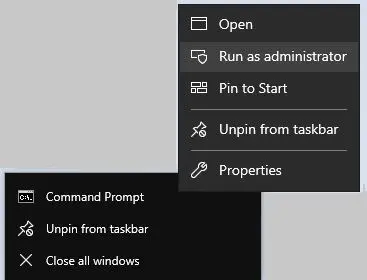
For 32-bit Crystal Reports (2008–2016):
Run Command Prompt as Administrator and execute:
                                    cd "C:\Program Files\Common Files\Barcodesoft\FontUtil"

                                    regsvr32.exe cruflbcs.dll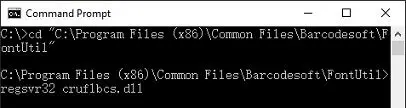
-
Step 2: Create a New Upca Formula Field
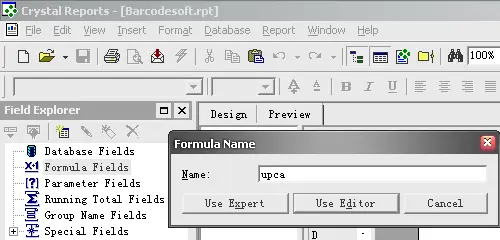
Open your Crystal Report layout. Right-click Formula Fields in the Field Explorer pane and select New... from the context menu. Type "UpcEanM" in the Name textbox, then click the Use Editor button.
-
Step 3: Locate the Barcodesoft Upca Function
In the Formula Workshop, navigate to the Additional Functions directory and double-click the
BCSLinearUPCAfunction listing located under the Visual Basic UFLs node.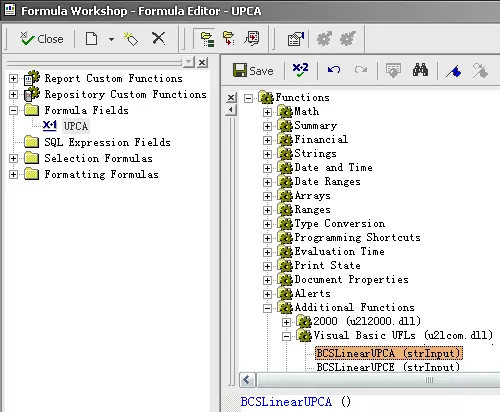
-
Step 4: Use Your Database Field as a Parameter for Upca formula
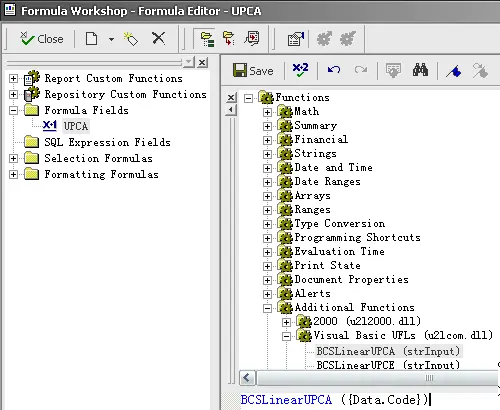
Provide your target database field as the primary string parameter inside the formula brackets. Click the Save button to validate and preserve your new formula logic configuration.
-
Step 5: Insert Upca Formula Field Into Your Report Canvas
Drag your newly saved
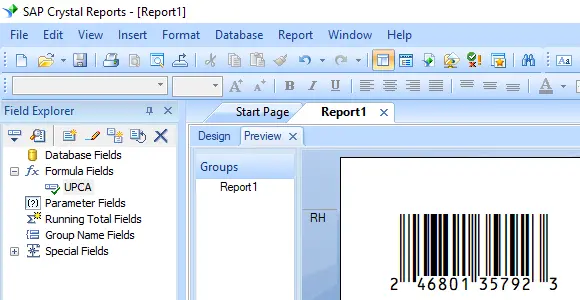
Upcaformula field out of the Field Explorer and drop it onto the design view grid canvas area where you want Upca barcode to appear.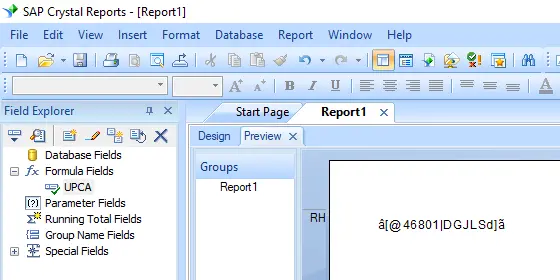
-
Step 6: Apply the UpcEanM Font Typeface
Right-click the placed formula text block object on your canvas and choose Format Field from the context menu. In the Font customization tab pane, select "UpcEanM" from the font family drop-down menu selection list.
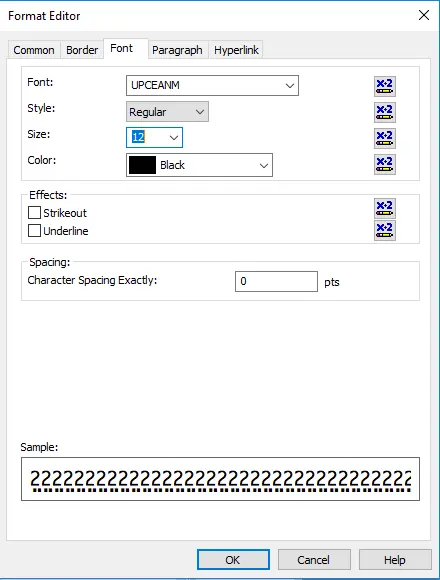
The package includes six TrueType fonts: UpcEanXXL, UpcEanXL, UpcEanL, UpcEanM, UpcEanS, and UpcEanXS. Each font is designed with a different aspect ratio, allowing you to select the one that best suits your application requirements.
-
Step 7: Verify Upc-A Barcode Generation
Click the OK button to apply changes. The text string placeholders will immediately transform and render as an active, readable Upc-a barcode inside your report template preview layout.