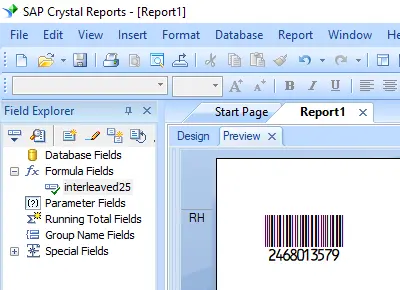
Generate interleaved-2-of-5 Barcodes
Implement seamlessly across Crystal Reports, MS Excel, and MS Access



Generate Interleaved 2 of 5 Barcode in Crystal Reports
How to generate an Interleaved 2 of 5 barcode in Crystal Reports?
To generate an Interleaved 2 of 5 barcode in Crystal Reports, create a new formula field using the BCSLinearI25 function from the Barcodesoft UFL library. Pass your database fields as arguments, place the formula field on your design view, and assign the I25MHr font.
-
Step 1: Determine the bitness of SAP Crystal Reports and register the DLL
Determine the bitness of your SAP Crystal Reports version. SAP Crystal Reports 2008 to 2016 are 32-bit versions, while SAP Crystal Reports 2020 and 2025 are 64-bit versions.
For 64-bit Crystal Reports (2020 / 2025):
Run Command Prompt as administrator and execute the following:
                    cd "C:\Program Files\Common Files\Barcodesoft\FontUtil"

                    %systemroot%\System32\regsvr32.exe cruflbcs_x64.dll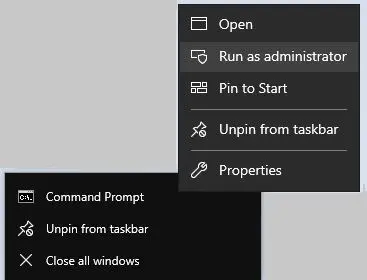
For 32-bit Crystal Reports (2008–2016):
Run Command Prompt as administrator and execute the following:
                    cd "C:\Program Files\Common Files\Barcodesoft\FontUtil"

                    regsvr32.exe cruflbcs.dll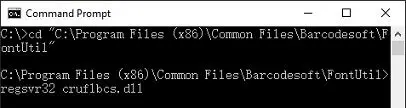
-
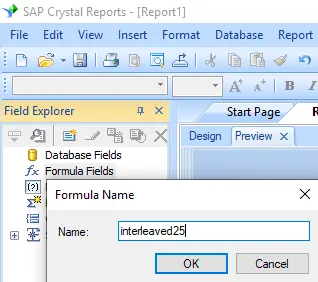
Step 2: Create a new Itf25 formula field
Open your Crystal Reports layout. In the Field Explorer, right-click on Formula Fields and select New... from the context menu. Enter the name "Itf25" in the Name text box, and then click the Use Editor button.
-
Step 3: Locate the Barcodesoft Interleaved 2 of 5 function
In the Formula Workshop, navigate to the "Additional Functions" directory and double-click the
BCSLinearI25function under the "Visual Basic UFLs" node.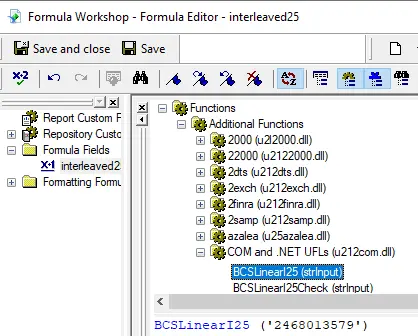
-
Step 4: Use your database field as a parameter
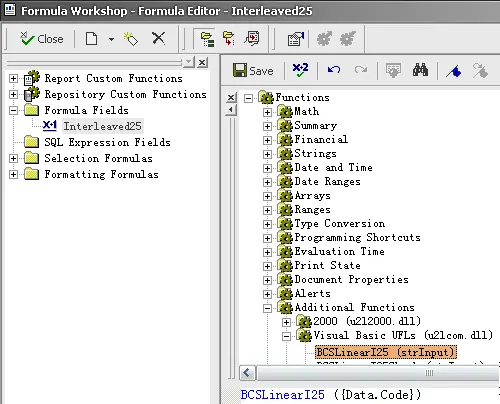
Specify your target database field as the primary string parameter within the parentheses of the Interleaved 2 of 5 formula. Click the Save button to validate and save your new formula logic configuration.
-
Step 5: Insert the Itf25 formula field into your report design
Drag your newly saved
Itf25formula field from the Field Explorer and drop it onto the grid area of the design view where you want the Itf25 barcode to appear.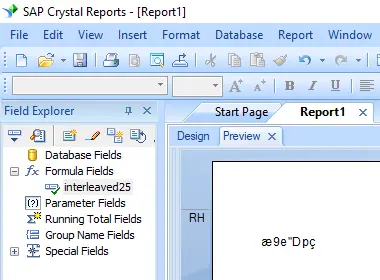
-
Step 6: Assign the I25MHr font
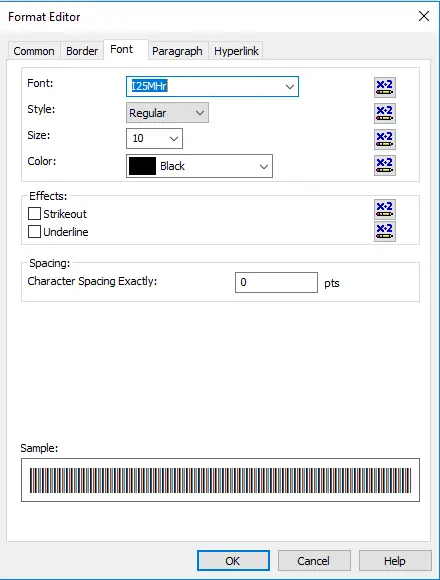
Right-click the placed formula text block object in your design view and select Format Field from the context menu. In the font customization tab, select "I25mHr" from the font family drop-down list.
-
Step 7: Verify the generation of the Interleaved 2 of 5 barcode
Click the OK button to apply the changes. The placeholder text strings will immediately be converted and rendered as an active, readable Interleaved 2 of 5 barcode in your report preview layout.