QR Code



Barcodesoft QR Code Encoder
Barcodesoft QR Code Font Package generates and prints QR Codes from 21×21 to 177×177 modules. Pre‑defined formats: from 21×21 to 177×177. Uses Reed–Solomon error correction with 4 levels (L07, M15, Q25, H30). Encodes alphanumeric, JIS 8‑bit, and Kanji (Shift JIS) – up to ~1,500 Japanese Kanji. Windows tools: BarTag and crUFLbcs.dll. Demo works with watermark. Non‑Japanese OS: Keyboard Wedge Emulation for RS‑232 scanning input.
Keywords
Anyone who needs to generate QRCode need look no further. The answer is Barcodesoft QR Code Font Package.
QR Code is also known as Quick Response Code. QR Code is a 2D matrix barcode symbology.
QRCode Matrix size ranges between 21 X 21 modules and 177 x 177 modules. Each module is either black or white.
QR Code is a well-designed barcode symbology that is able to encode both alphanumeric and conjunction characters.
QR Code is a two dimensional Japanese barcode that is able to encode 8-bit JIS characters and Kanji characters (Shift JIS characters). A Model 2 QR Code can hold up to 1500 Japanese Kanji characters.
The unique finder pattern and module placement algorithm makes QR Code symbol truly one of a kind in all barcode symbologies.
Barcodesoft QR Code printing solution used Reed Solomon algorithm for error checking and correcting.
QRCode has 4 different error correction levels to choose from : L07, M15, Q25 and H30. Higher level means less data capacity and less decoding error chance.
You can use either Barcodesoft QRCode Encoder or crUFLbcs.dll to encode your data on a Windows PC.
Barcodesoft QRCode Demo is fully functional even with the "Demo" watermark.
Please click the following URL for non-printable ASCII characters input.
If you are using a non-Japanese operating system, and want to scan a QR Code barcode symbol into your Windows application, please use Barcodesoft Keyboard Wedge Emulation program. It intercepts RS-232 port signals and emulates keyboard input.
| Index | Format | Index | Format |
|---|---|---|---|
| 1 | 21 x 21 | 21 | 101 x 101 |
| 2 | 25 x 25 | 22 | 105 x 105 |
| 3 | 29 x 29 | 23 | 109 x 109 |
| 4 | 33 x 33 | 24 | 113 x 113 |
| 5 | 37 x 37 | 25 | 117 x 117 |
| 6 | 41 x 41 | 26 | 121 x 121 |
| 7 | 45 x 45 | 27 | 125 x 125 |
| 8 | 49 x 49 | 28 | 129 x 129 |
| 9 | 53 x 53 | 29 | 133 x 133 |
| 10 | 57 x 57 | 30 | 137 x 137 |
| 11 | 61 x 61 | 31 | 141 x 141 |
| 12 | 65 x 65 | 32 | 145 x 145 |
| 13 | 69 x 69 | 33 | 149 x 149 |
| 14 | 73 x 73 | 34 | 153 x 153 |
| 15 | 77 x 77 | 35 | 157 x 157 |
| 16 | 81 x 81 | 36 | 161 x 161 |
| 17 | 85 x 85 | 37 | 165 x 165 |
| 18 | 89 x 89 | 38 | 169 x 169 |
| 19 | 93 x 93 | 39 | 173 x 173 |
| 20 | 97 x 97 | 40 | 177 x 177 |
Pricing list of Barcodesoft QRCode font package:
| License | Single User | 5-User | 10-User | Site | Corporate | Developer | 5-Developer | 10-Developer | Unlimited Developer |
|---|---|---|---|---|---|---|---|---|---|
| Price | CAD299 | CAD399 | CAD599 | CAD799 | CAD999 | CAD1199 | CAD1399 | CAD1999 | CAD2999 |
Generate QR Code in Crystal Reports
How to generate a QR Code in Crystal Reports?
To generate a QR Code in Crystal Reports, create a new formula field using the BCSQRCodeEncodeCR function from the Barcodesoft UFL library. Pass your database fields as arguments, place the formula field on your design canvas, and apply the BcsQRCode font family.
-
Step 1: Determine SAP Crystal Reports Bitness and Register DLL
Determine the bitness of your SAP Crystal Reports version. SAP Crystal Reports 2008 through 2016 are 32-bit, while SAP Crystal Reports 2020 and 2025 are 64-bit.
For 64-bit Crystal Reports (2020 / 2025):
Run Command Prompt as Administrator and execute:
                                    cd "C:\Program Files\Common Files\Barcodesoft\FontUtil"

                                    %systemroot%\System32\regsvr32.exe cruflbcs_x64.dll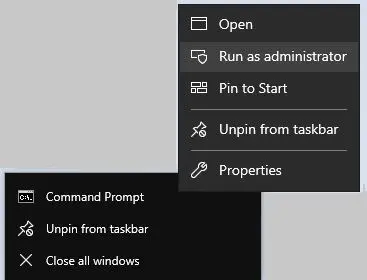
For 32-bit Crystal Reports (2008–2016):
Run Command Prompt as Administrator and execute:
                                    cd "C:\Program Files (x86)\Common Files\Barcodesoft\FontUtil"

                                    regsvr32.exe cruflbcs.dll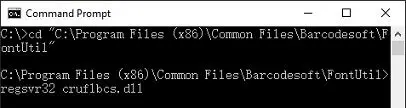
-
Step 2: Locate the Barcodesoft UFL Function
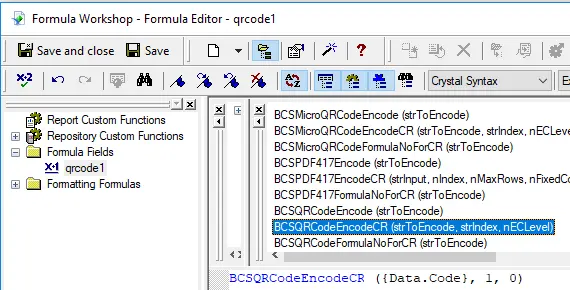
In Crystal Reports, navigate through the function explorer hierarchy: Functions List ⇒ Additional Functions ⇒ COM and .NET UFLs (u212com.dll) ⇒ Visual Basic UFLs. Double-click on the BCSQRCodeEncodeCR function.
-
Step 3: Create a New Formula Field
Right-click Formula Fields and choose New... from the context menu. Name your new field "BcsQRCode1", then click "Use Editor".
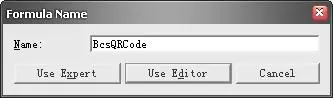
After the QR Code encoding process, even a short string might contain more code words than expected. Because Crystal Reports limits formula fields to 255 characters, you must split the encoded QR code into separate parts and concatenate them inside a Text Object before applying the font. Use the following function to check how many formula fields you will need:
BCSQRCodeFormulaNoForCR({Test.Data}) -
Step 4: Create Multiple Formula Fields
Create multiple formula fields as listed below if the returned value of
BCSQRCodeFormulaNoForCR({Test.Data})is larger than one. Then, place them sequentially inside the same Text Object.BCSQRCodeEncodeCR({Test.Data}, 1, 0)
BCSQRCodeEncodeCR({Test.Data}, 2, 0)
BCSQRCodeEncodeCR({Test.Data}, 3, 0)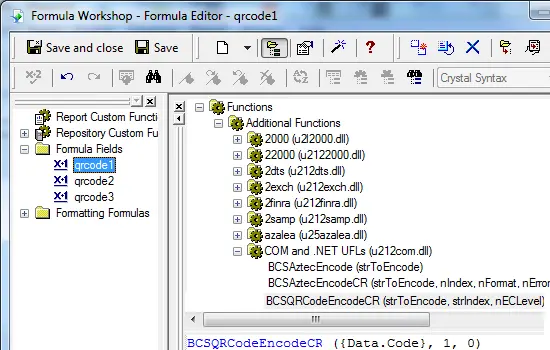
Parameter Breakdown: The 1st parameter is the string to encode; the 2nd is the chunk index; the 3rd is the error correction level (1-4 represents L07, M15, Q25, and H30. Set to 0 for auto-selected default M15 error correction).
-
Step 5: Insert a Text Object in Your Report
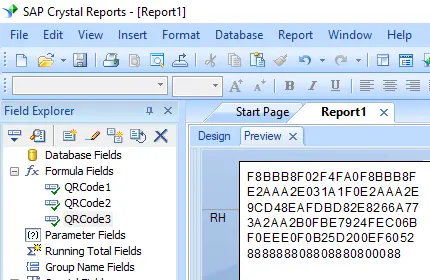
Drag and drop all your created formula fields into this text object in sequence. You will see fallback hex codes in your report layout initially. Do not worry; this is normal because the barcode font has not yet been applied.
-
Step 6: Apply the BcsQRCode Font Typeface
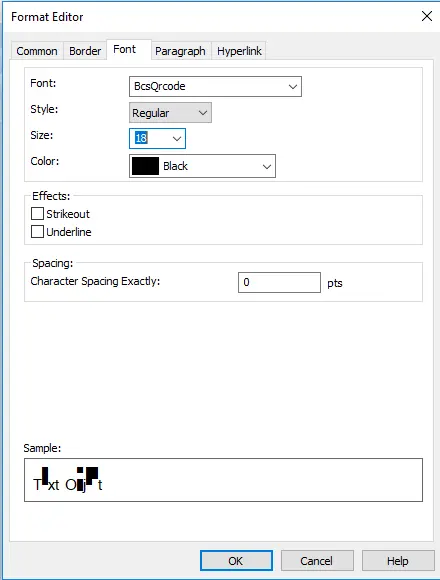
Right-click the Text Object and select Format Object from the context menu. In the Font tab, choose "BcsQRCode" as your font family.
-
Step 7: Verify QR Code Generation
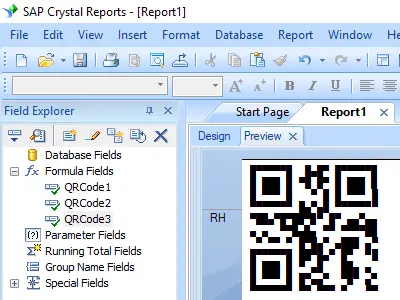
Click the OK button. The fallback characters will immediately render as a fully scannable QR Code in your report layout.
How to Generate GS1-Compliant QR Codes
If your project requires GS1-compliant formatting rather than standard text encoding, use the dedicated BCSQRCodeEncodeCRGS1 function across multiple split formulas:
                            BCSQRCodeEncodeCRGS1(str, 1, 0);

                            BCSQRCodeEncodeCRGS1(str, 2, 0);

                            BCSQRCodeEncodeCRGS1(str, 3, 0);
Parameter Specifications for GS1:
- 1st Parameter (str): The raw input data string. Ensure your format strictly groups elements using parentheses before and after each Application Identifier (AI)—for example,
(17)190508(90)50921. The library's background DLL handling will auto-inject necessary FNC1 delimiters. - 2nd Parameter: The sequential segment index of your target formula.
- 3rd Parameter: The desired error correction level configuration.
Generate QRCode in MS Excel
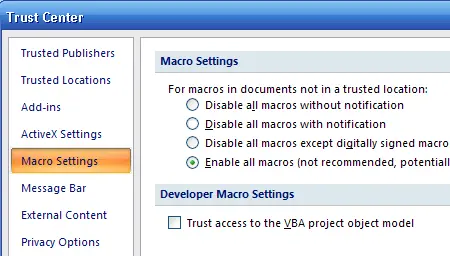
To generate QR Code in Excel spreadsheet: enable VBA macro in Trust Macro Settings. Press F11 to launch Visual Basic Window. Establish Library Reference referencing cruflbcs.dll library, importing barcodesoft.bas, applying the =qrcode(A1) formula, and formatting cell typography with the BcsQrcodeS barcode font.
Step 1. Right click command prompt and run command prompt as administrator.
cd "C:\Program Files\Common Files\Barcodesoft\FontUtil"
%systemroot%\System32\regsvr32.exe cruflbcs_x64.dllcd "C:\Program Files (x86)\Common Files\Barcodesoft\FontUtil"
regsvr32.exe cruflbcs.dll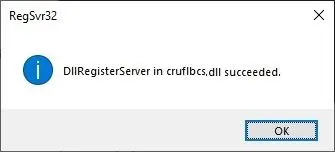
Step 2. Start Microsoft® Excel®.
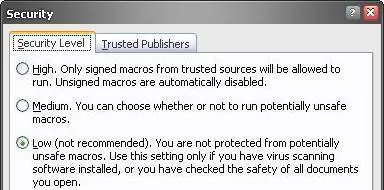
If you are using Excel 2000 or 2003, click menu ===> Tools ==> Macro ===> Security. Choose Low security level.


Step 3. Press ALT + F11 to open Microsoft® Visual Basic editor.
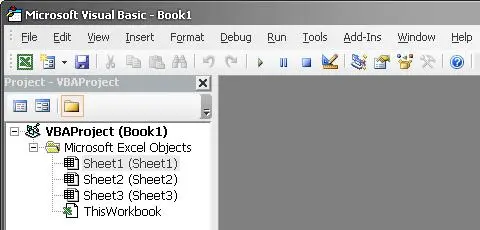
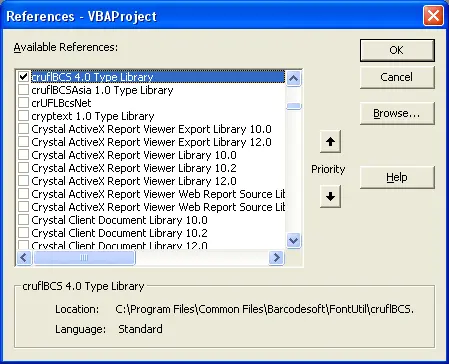
Step 4. From Visual Basic editor, choose menu Tools ===> References. It will popup a dialog. Click Browse button and choose cruflbcs.dll from your working folder. Usually it's under C:\Program Files (x86)\Common Files\Barcodesoft\Fontutil folder. Click the checkbox beside crUFLBcs 4.0 Type Library as shown below. Then click OK button.
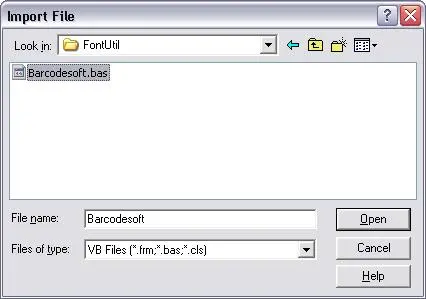
Step 5. Press Ctrl+M, it will popup a dialog, choose barcodesoft.bas under C:\Program Files (x86)\Common Files\Barcodesoft\Fontutil folder. Then click "Open".
If you don't find barcodesoft.bas, please download it from QRCode.
Step 6. Close Visual Basic and go back to your spreadsheet. Now, you can use the following macro to encode data: qrcode. When you have lots of data to process, you can just copy and paste the QRCode macro to the whole column / row of data. All your QRCode will be ready immediately.
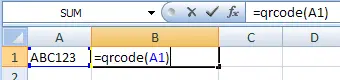
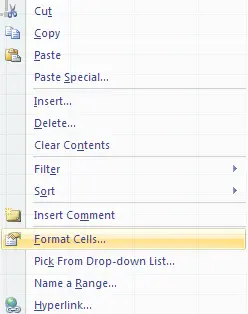
Step 7. Right click Cell B1, choose Format Cell from context menu as shown below.
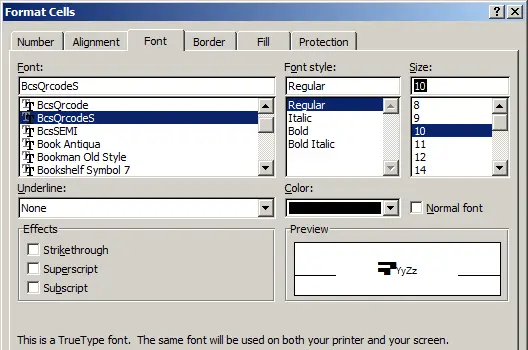
Step 8. Click Font tab and choose BcsQRCodeS as font typeface as shown below.
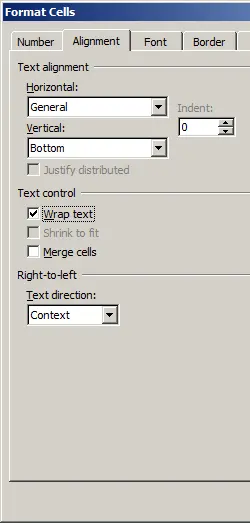
Step 9. Click Alignment tab and select "wrap text" as shown below.
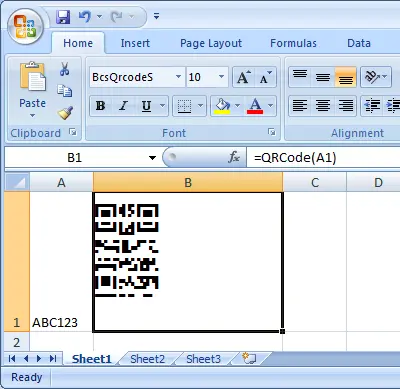
Step 10. Click OK and you should be able to see QRCode barcode in your Excel spreadsheet now. There might be a small gap between different lines of QRCode. However, this won't be an issue when you scan the printed QRCode because bcsDatamatrixS true type font is designed to reduce this gap to mininum.
Generate QRCode in MS Access
How to generate a QR Code in Microsoft Access report
This workflow details how to generate a QRCode within an MS Access database report. It guides developers through adjusting Access Trust Center security, launching the VBA editor via ALT + F11, adding the cruflbcs.dll type library reference, and importing the barcodesoft.bas module. Finally, it explains how to apply the =qrcode([TableName].[FieldName]) expression to a report text box in Design View and assign the specialized BcsQRCode barcode font.
Step 1. Right click command prompt and run command prompt as administrator.
cd "C:\Program Files\Common Files\Barcodesoft\FontUtil"
%systemroot%\System32\regsvr32.exe cruflbcs_x64.dllcd "C:\Program Files (x86)\Common Files\Barcodesoft\FontUtil"
regsvr32.exe cruflbcs.dllStep 2. If you see the following Window pop up, your registration was successful.
Step 3. Start Microsoft® Access®.
If you are using Access 2000 or 2003, click menu ===> Tools ==> Macro ===> Security. Choose Low security level.


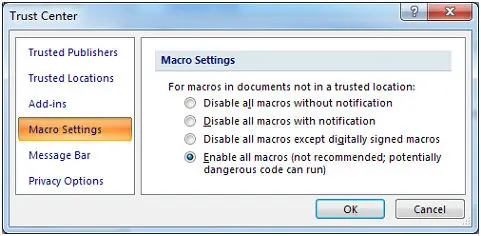
Step 4. Press ALT + F11 to open Microsoft® Visual Basic editor.
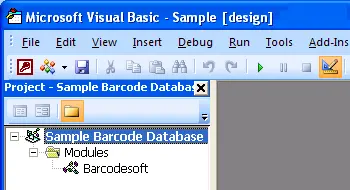
Step 5. From Visual Basic editor, choose menu Tools ===> References. It will popup a dialog. Click Browse button and choose cruflbcs.dll from your working folder. Usually it's under C:\Program Files (x86)\Common Files\Barcodesoft\Fontutil folder. Click the checkbox beside crUFLBcs 4.0 Type Library as shown below. Then click OK button.
Step 6. Press Ctrl+M, it will popup a dialog, choose barcodesoft.bas under C:\Program Files (x86)\Common Files\Barcodesoft\Fontutil folder. Then click "Open".
If you don't find barcodesoft.bas, please download it from QRCode.
Step 7. Close Visual Basic and go back to your Access database. Now, create a report in Design view and type in one of the following macros in the field where you want to show QRCode barcode before apply font typeface:
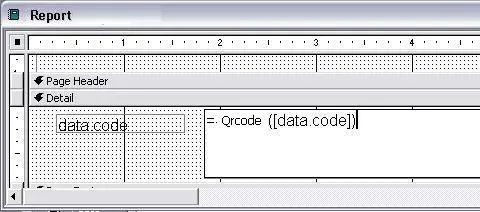
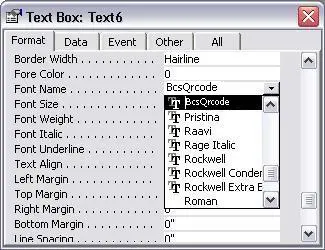
Step 8. Right click the field you want to display QRCode barcode. Choose Properties from context menu. Apply BcsQRCode to the field to get a QRCode.