Generate GS1128 Barcodes
Implement seamlessly across Crystal Reports, MS Excel, and MS Access


Generate GS1128 Barcode in Crystal Reports
Since GS1128 is designed on top of Code128, it uses the Code128 barcode font typeface family.
1. Create a New Formula Field
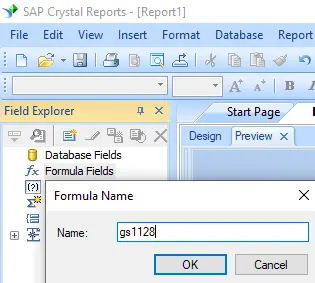
Open your Crystal Report. Right-click Formula Fields and choose "New..." from the context menu. Set the name to "GS1128", then click "Use Editor".
2. Locate the UFL Function
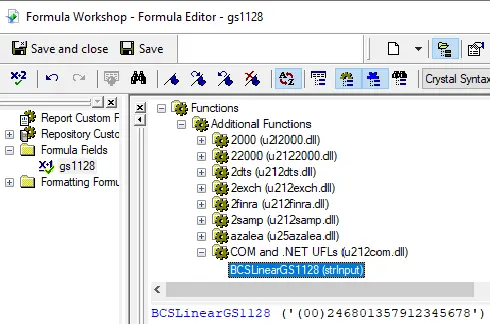
Navigate through the hierarchy: Functions List ⇒ Additional Functions ⇒ COM and .NET UFLs (u212com.dll) ⇒ Visual Basic UFLs. Double-click on the BCSLinearGS1128 function.
3. Input Database Fields & Save
Provide your database field as the parameter for the GS1128 formula, then click "Save". The DLL automatically applies FNC1 characters during computation when moving to a variable-length Application Identifier.
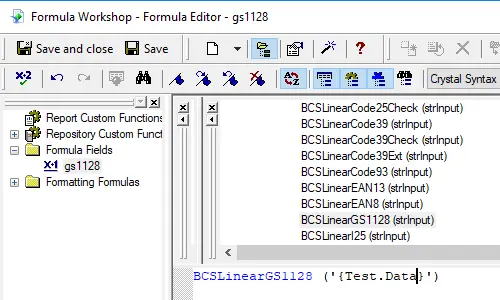
(02)12345678901234(10)12345678901234567890
The underlying parser processes the initial FNC1 string placeholder as "[C1", mapping cascading instances to GS (ASCII 29).
4. Position the Formula on the Workspace
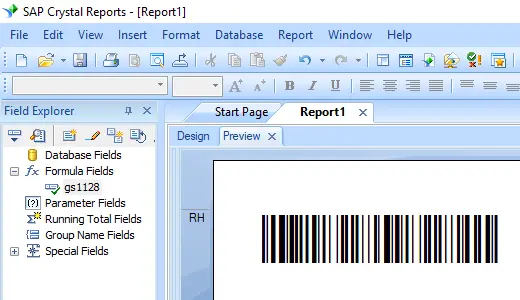
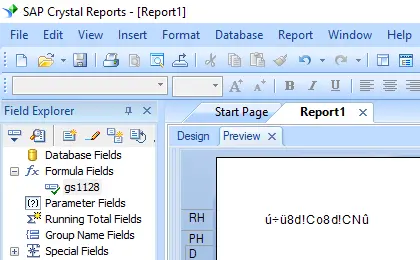
Drag the newly crafted GS1128 formula field directly onto your design view canvas. Note that raw text strings will appear initially before structural font transformations are assigned.
5. Map Font Style Settings
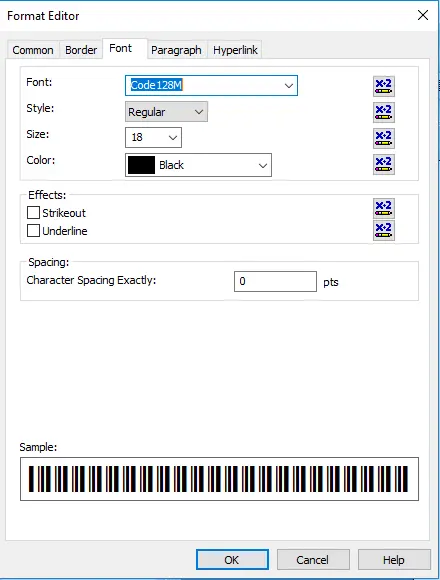
Right-click your formula block, tap "Format Field", and pick code128m under Font properties. Confirm to process formatting logic successfully.