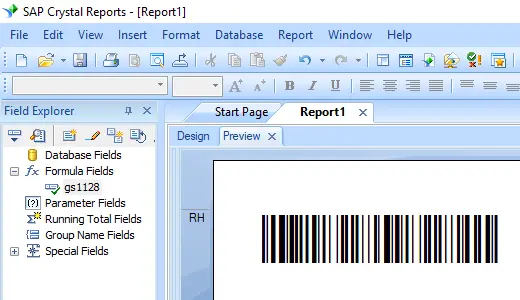
Generate GS1128 Barcodes
Implement seamlessly across Crystal Reports, MS Excel, and MS Access



Generate GS1 128 Barcode in Crystal Reports
Since GS1-128 is designed on top of Code 128, it uses the Code 128 barcode font typeface family.
How to generate a GS1 128 barcode in Crystal Reports?
To generate a GS1 128 barcode in Crystal Reports, create a new formula field using the BCSLinearGS1128 function from the Barcodesoft UFL library. Pass your database fields as arguments, place the formula field on your design canvas, and apply the Code128M font family.
-
Step 1: Determine SAP Crystal Reports Bitness and Register DLL
Determine the bitness of your SAP Crystal Reports version. SAP Crystal Reports 2008 through 2016 are 32-bit, while SAP Crystal Reports 2020 and 2025 are 64-bit.
For 64-bit Crystal Reports (2020 / 2025):
Run Command Prompt as Administrator and execute:
                    cd "C:\Program Files\Common Files\Barcodesoft\FontUtil"

                    %systemroot%\System32\regsvr32.exe cruflbcs_x64.dll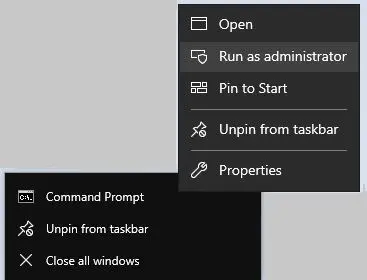
For 32-bit Crystal Reports (2008–2016):
Run Command Prompt as Administrator and execute:
                    cd "C:\Program Files\Common Files\Barcodesoft\FontUtil"

                    regsvr32.exe cruflbcs.dll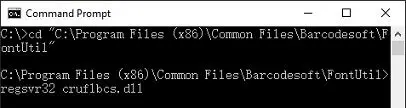
-
Step 2: Create a New gs1128 Formula Field
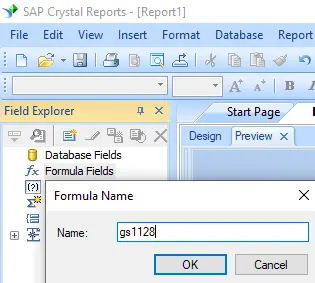
Open your Crystal Report layout. Right-click Formula Fields in the Field Explorer and choose "New..." from the context menu. Set the formula name to "GS1128", then click "Use Editor".
-
Step 3: Locate the Barcodesoft GS1 128 UFL Function
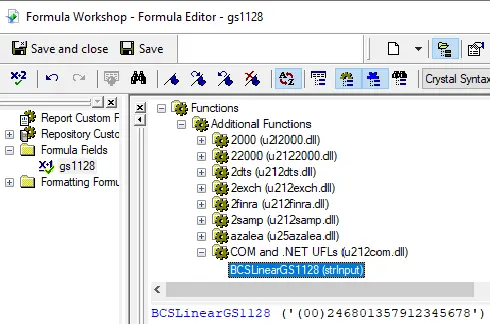
In the Formula Workshop, navigate through the function hierarchy tree: Functions List ⇒ Additional Functions ⇒ COM and .NET UFLs (u212com.dll) ⇒ Visual Basic UFLs. Double-click the BCSLinearGS1128 function.
-
Step 4: Input Database Fields and Format AIs
Provide your database field as the primary parameter inside your
BCSLinearGS1128formula statement and click "Save". The dynamic link library (cruflbcs.dll) automatically processes and generates FNC1 control characters during calculation.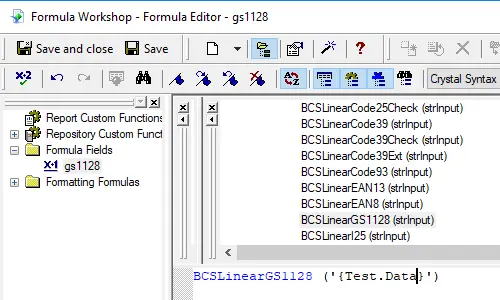 💡Encoding Multiple Application Identifiers (AIs): Wrap each individual Application Identifier (AI) inside standard parentheses. For example, to chain AI (02) with AI (10), format your string data as:
(02)12345678901234(10)12345678901234567890The parser handles the start FNC1 as "[C1" and maps subsequent separators to ASCII 29 (GS).
-
Step 5: Position the GS1128 Formula Field on Your Design Canvas
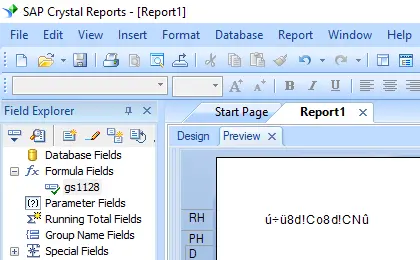
Drag and drop your newly defined GS1128 formula field onto your design layout canvas. The raw calculated text strings will display on-screen initially before the font is mapped.
-
Step 6: Map the GS1 128 Font Typeface
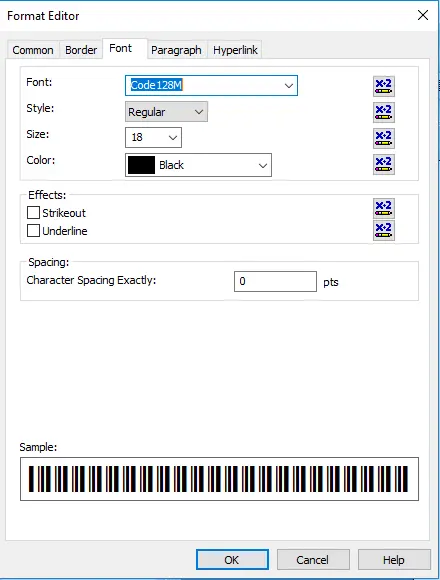
Right-click the formula block on your report, click "Format Field", and pick code128m (or code128mHr) in the Font properties tab. Click OK to finish.
-
Step 7: Verify GS1 128 Barcode Generation
Click the OK button to apply changes. The text string placeholders will immediately transform and render as an active, readable GS1 128 barcode inside your report template preview layout.