QR Code



Generate QRCode in MS Access
This workflow details how to generate a QRCode within an MS Access database report. It guides developers through adjusting Access Trust Center security, launching the VBA editor via ALT + F11, adding the cruflbcs.dll type library reference, and importing the barcodesoft.bas module. Finally, it explains how to apply the =qrcode([TableName].[FieldName]) expression to a report text box in Design View and assign the specialized BcsQRCode barcode font.
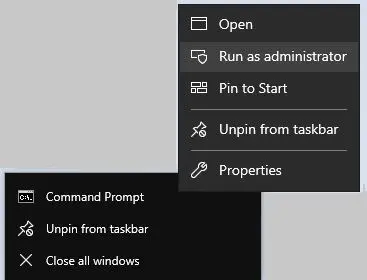
Step 1. Right click command prompt and run command prompt as administrator.
cd "C:\Program Files\Common Files\Barcodesoft\FontUtil"
%systemroot%\System32\regsvr32.exe cruflbcs_x64.dllcd "C:\Program Files (x86)\Common Files\Barcodesoft\FontUtil"
regsvr32.exe cruflbcs.dll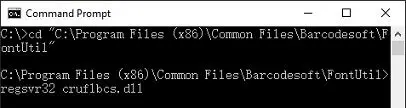
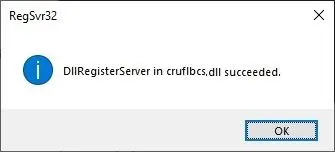
Step 2. If you see the following Window pop up, your registration was successful.
Step 3. Start Microsoft® Access®.
If you are using Access 2000 or 2003, click menu ===> Tools ==> Macro ===> Security. Choose Low security level.
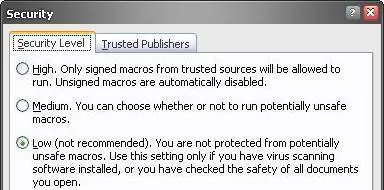


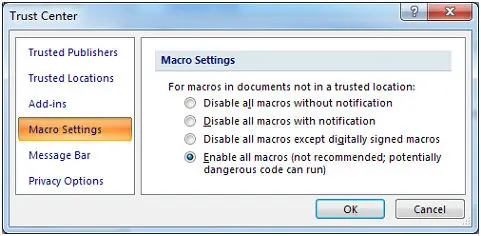
Step 4. Press ALT + F11 to open Microsoft® Visual Basic editor.
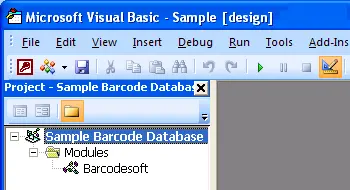
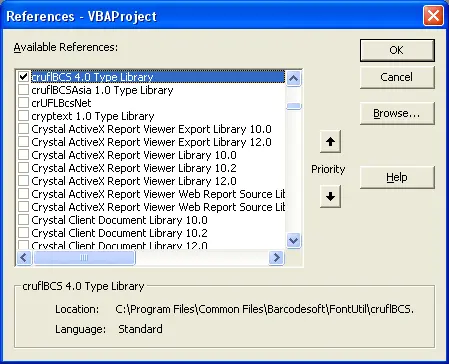
Step 5. From Visual Basic editor, choose menu Tools ===> References. It will popup a dialog. Click Browse button and choose cruflbcs.dll from your working folder. Usually it's under C:\Program Files (x86)\Common Files\Barcodesoft\Fontutil folder. Click the checkbox beside crUFLBcs 4.0 Type Library as shown below. Then click OK button.
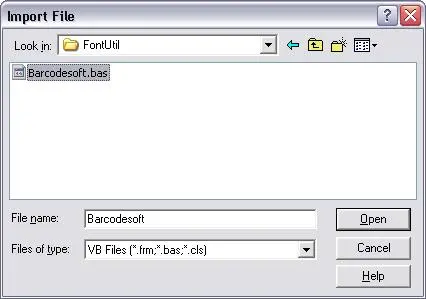
Step 6. Press Ctrl+M, it will popup a dialog, choose barcodesoft.bas under C:\Program Files (x86)\Common Files\Barcodesoft\Fontutil folder. Then click "Open".
If you don't find barcodesoft.bas, please download it from QRCode.
Step 7. Close Visual Basic and go back to your Access database. Now, create a report in Design view and type in one of the following macros in the field where you want to show QRCode barcode before apply font typeface:
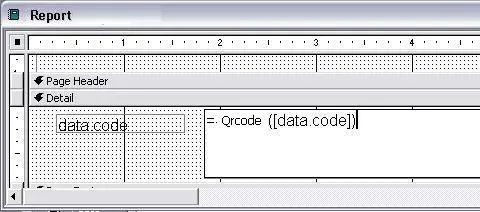
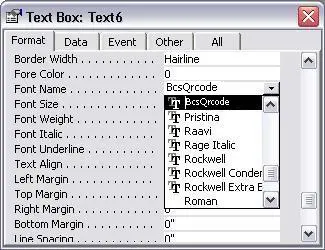
Step 8. Right click the field you want to display QRCode barcode. Choose Properties from context menu. Apply BcsQRCode to the field to get a QRCode.