
Generate GS1128 Barcodes in Crystal Reports
Generate GS1128 Barcode in Crystal Reports
GS1128 is designed upon Code128. Therefore, GS1128 barcode is encoded by Code128 barcode font.
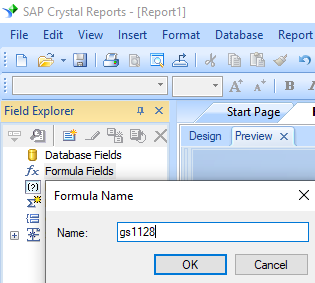
1. Open your crystal report. Right click Formula Fields, choose "New..." from the context menu.
Type in "GS1128" in the Name textbox, then click "Use Editor".
2. From Functions List ==> Additional Functions ==> COM and .NET UFLs (u212com.dll) ==> Visual Basic UFLs, double click to choose "BCSLinearGS1128" function as shown below.
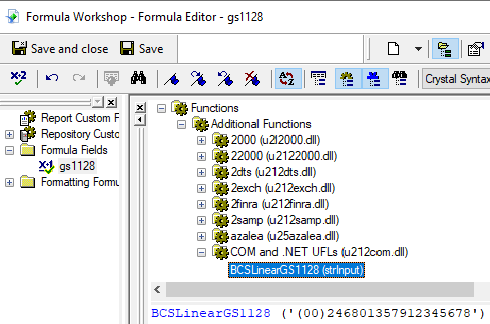
3. Then type in the database field as parameter for GS1128 formula. And click "Save" button to save GS1128 formula field.
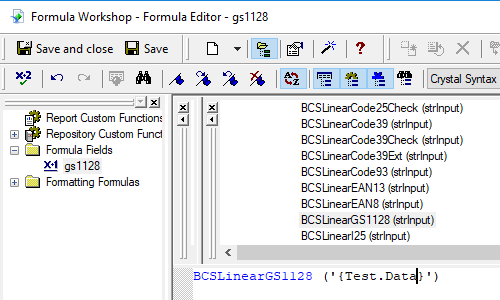
Please notice that FNC1 will be added for you automatically when necessary. When preceded by a variable-lengthed Application Identifier, the DLL will place a FNC1 before the new Application Identifier.
When you need to encode multiple AIs in one GS1-128 bar code, please put parentheses before and after each Application Identifier (AI).
Therefore, AI (02) and (10) will be input as shown below
(02)12345678901234(10)12345678901234567890
The first FNC1 will be output as "[C1".
Other FNC1 will be output as GS (ASCII 29).
4. Drag and drop the GS1128 formula field in your crystal report design view. You will see some strange characters in your report. Don't worry! You have NOT applied GS1128 barcode font yet.
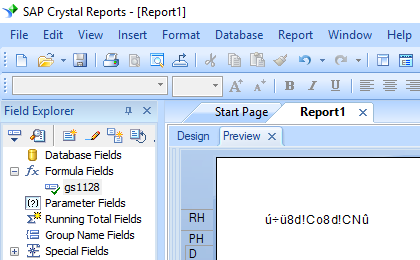
5. Right click GS1128 formula field and choose "Format Field" from context menu. Then choose "code128m" font typeface.
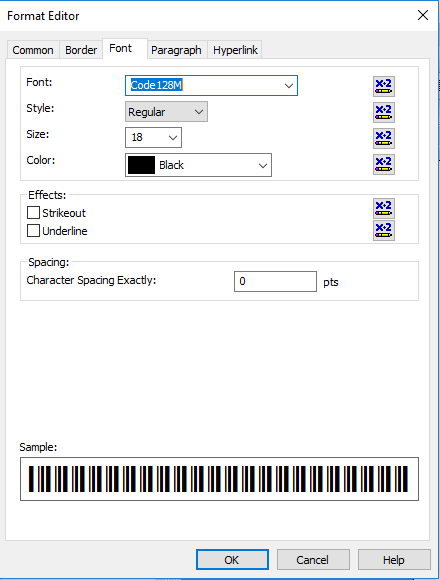
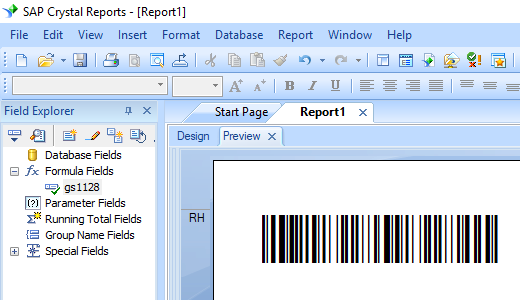
Click OK button. You will see GS1128 barcode in your crystal report.