Generate Data Matrix Barcodes
Implement seamlessly across Crystal Reports, MS Excel, and MS Access



Generate Data Matrix Barcode in Crystal Reports
How to generate a Data Matrix barcode in Crystal Reports?
To generate a Data Matrix barcode in Crystal Reports, create a new formula field using the BCSDataMatrixEncodeCR function from the Barcodesoft UFL library. Pass your database fields as arguments, place the formula field on your design canvas, and apply the BcsDataMatrix font family.
-
Step 1: Determine SAP Crystal Reports Bitness and Register DLL
Determine the bitness of your SAP Crystal Reports version. SAP Crystal Reports 2008 through 2016 are 32-bit, while SAP Crystal Reports 2020 and 2025 are 64-bit.
For 64-bit Crystal Reports (2020 / 2025):
Run Command Prompt as Administrator and execute:
                    cd "C:\Program Files\Common Files\Barcodesoft\FontUtil"

                    %systemroot%\System32\regsvr32.exe cruflbcs_x64.dll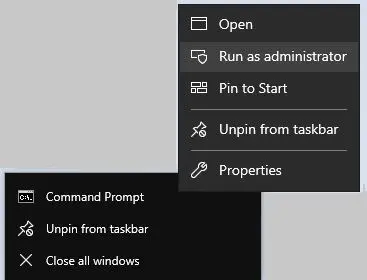
For 32-bit Crystal Reports (2008–2016):
Run Command Prompt as Administrator and execute:
                    cd "C:\Program Files (x86)\Common Files\Barcodesoft\FontUtil"

                    regsvr32.exe cruflbcs.dll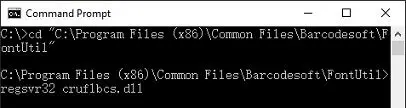
-
Step 2: Locate the Barcodesoft UFL Function
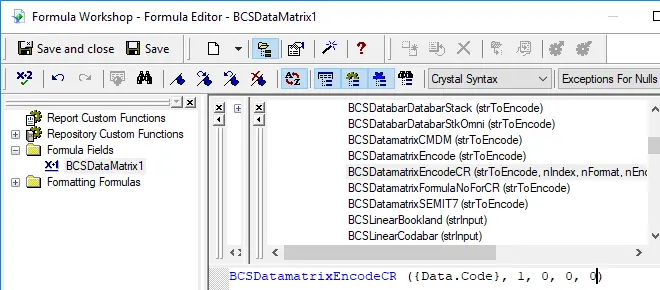
In Crystal Reports, navigate through the function explorer hierarchy: Functions List ⇒ Additional Functions ⇒ COM and .NET UFLs (u212com.dll) ⇒ Visual Basic UFLs. Double-click on the BCSDataMatrixEncodeCR function.
-
Step 3: Create a New Formula Field
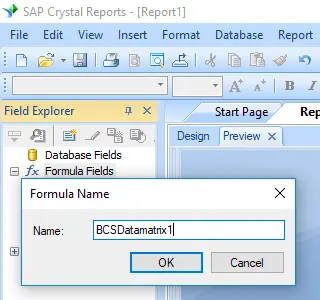
Right-click Formula Fields and choose New... from the context menu. Name your new field "BcsDataMatrix1", then click "Use Editor".
After Data Matrix encoding process, even a short string might have much more code words than you expect, while Crystal Reports allows no more than 255 characters in a formula field. Therefore we have to split Data Matrix code words into separate parts, and concatenate them in a Text Object before apply font BcsDataMatrix. As for how many formula fields are needed, you can find out by using the following function:
BCSDatamatrixFormulaNoForCR({Test.Data})
-
Step 4: Create multiple formula fields
Create multiple formula fields as listed below if returned value of BCSDatamatrixFormulaNoForCR({Test.Data}) is larger than one. Then put them in sequence within the same Text Object.
                    BCSDataMatrixEncodeCR({Test.Data}, 1, 0, 0, 0)

                    BCSDataMatrixEncodeCR({Test.Data}, 2, 0, 0, 0)

                    BCSDataMatrixEncodeCR({Test.Data}, 3, 0, 0, 0)
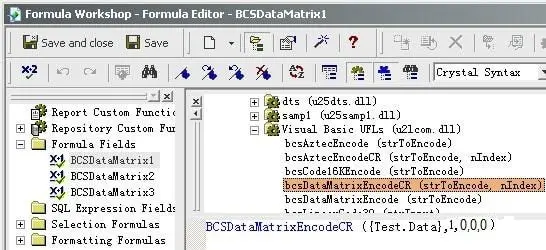
The first parameter in the formula field is string to encode. The second parameter in the formula field is index. The third parameter of the formula is Format. Its values range between 0 and 30. When set to zero, it means auto-selected format. The fourth parameter is Encodation method. Its values range between 1 and 6 which stand for the following encodation separately: ASCII, C40, TEXT, X12, EDIFACT, BASE256. The fifth parameter is GS1 indicator. It is a Boolean indicating whether this is a GS1-compliant barcode. Set it to zero when this is not GS1-datamatrix compliant.
-
Step 5: Insert a text object in your report
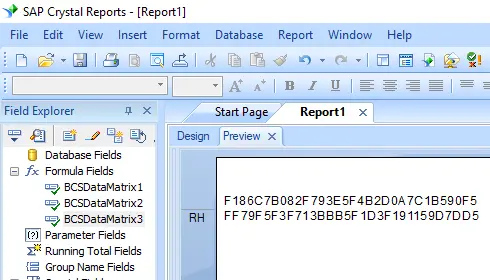
Drag and drop all your formula fields into this text object in sequence. You will see some hex codes in your report. Don't worry! You have NOT applied BCSDatamatrix font typeface yet.
-
Step 6: Apply font typeface BcsDatamatrix
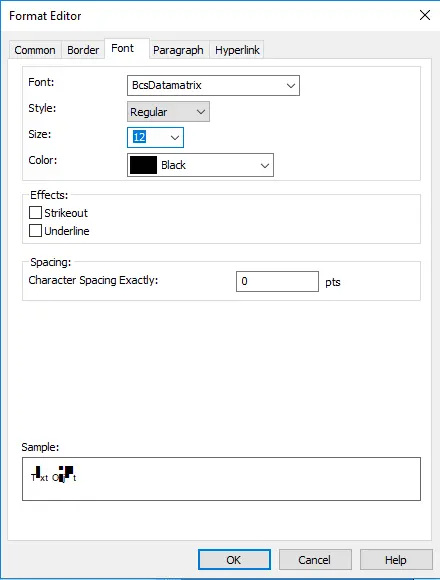
Right click Text Object and choose "Format Object" from context menu. Then choose "BcsDatamatrix" as font.
-
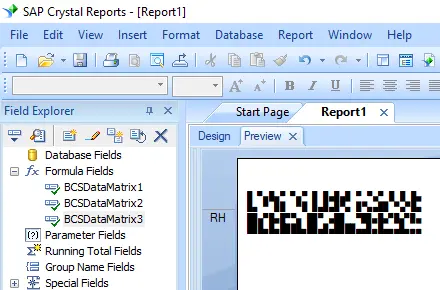
Step 7: Datamatrix is created in your Crystal Reports
Click OK button. You will get data matrix barcode in your report.