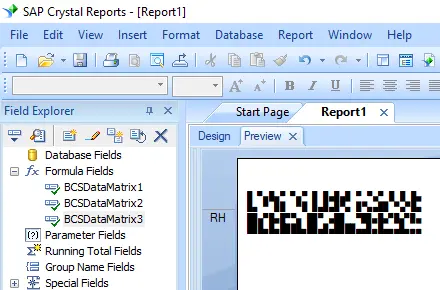
Generate Data Matrix Barcodes
Implement seamlessly across Crystal Reports, MS Excel, and MS Access


Generate Data Matrix Barcode in Crystal Reports
SAP Crystal Reports 2008 / 2011 / 2013 / 2016 are 32-bit.
SAP Crystal Reports 2020 / 2025 are 64-bit.
1.1 If your SAP Crystal Reports is 64-bit, please register 64-bit cruflbcs_x64.dll as instructed below.
Right click command prompt and run command prompt as administrator.
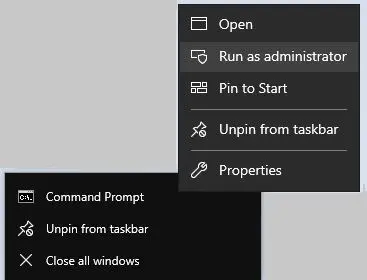
To register 64-bit DLL, please type in the following commands
                cd "C:\Program Files\Common Files\Barcodesoft\FontUtil"

                %systemroot%\System32\regsvr32.exe cruflbcs_x64.dll
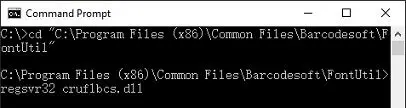
1.2 If your SAP Crystal Reports is 32-bit, please register 32-bit cruflbcs.dll as instructed below.
Type in the following commands to register 32-bit cruflbcs.dll
                cd "C:\Program Files (x86)\Common Files\Barcodesoft\FontUtil"

                regsvr32.exe cruflbcs.dll
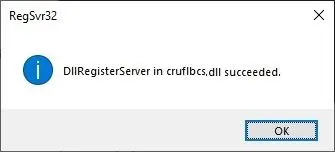
If you see the following Window pop up, your registration was successful.
2. Locate the UFL Function.
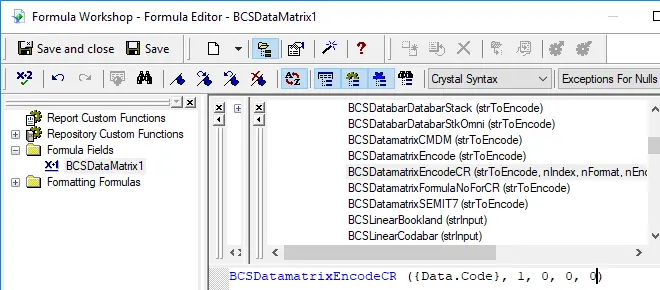
Navigate through the hierarchy: Functions List ⇒ Additional Functions ⇒ COM and .NET UFLs (u212com.dll) ⇒ Visual Basic UFLs. Double-click on the BCSDataMatrixEncodeCR function.
3. Create a New Formula Field
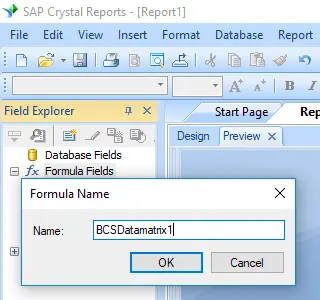
Open your Crystal Report. Right-click Formula Fields and choose "New..." from the context menu. Set the name to "BcsDataMatrix1", then click "Use Editor".
After Data Matrix encoding process, even a short string might have much more code words than you expect, while Crystal Reports allows no more than 255 characters in a formula field.
Therefore we have to split Data Matrix code words into separate parts, and concatenate them in a Text Object before apply font BcsDataMatrix.
As for how many formula fields are needed, you can find out by using the following function:
BCSDatamatrixFormulaNoForCR({Test.Data})
4. Create multiple formula fields
Create multiple formula fields as listed below if returned value of BCSDatamatrixFormulaNoForCR({Test.Data}) is larger than one. Then put them in sequence within the same Text Object.
BCSDataMatrixEncodeCR({Test.Data}, 1, 0, 0, 0)
BCSDataMatrixEncodeCR({Test.Data}, 2, 0, 0, 0)
BCSDataMatrixEncodeCR({Test.Data}, 3, 0, 0, 0)
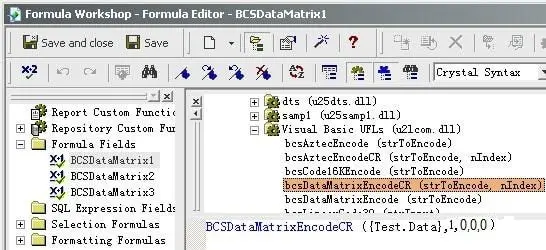
The first parameter in the formula field is string to encode.
The second parameter in the formula field is index.
The third parameter of the formula is Format. Its values range between 0 and 30. When set to zero, it means auto-selected format.
The fourth parameter is Encodation method. Its values range between 1 and 6 which stand for the following encodation separately: ASCII, C40, TEXT, X12, EDIFACT, BASE256.
The fifth parameter is GS1 indicator. It is a Boolean indicating whether this is a GS1-compliant barcode. Set it to zero when this is not GS1-datamatrix compliant.
5. Insert a text object in your report.
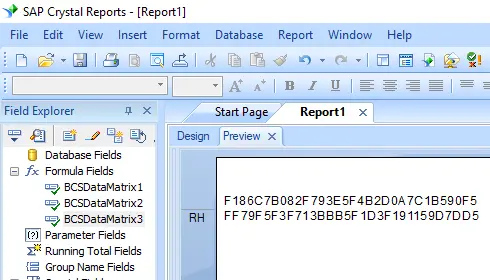
Drag and drop all your formula fields into this text object in sequence. You will see some hex codes in your report. Don't worry! You have NOT applied BCSDatamatrix font typeface yet.
6. Apply font typeface BcsDatamatrix.
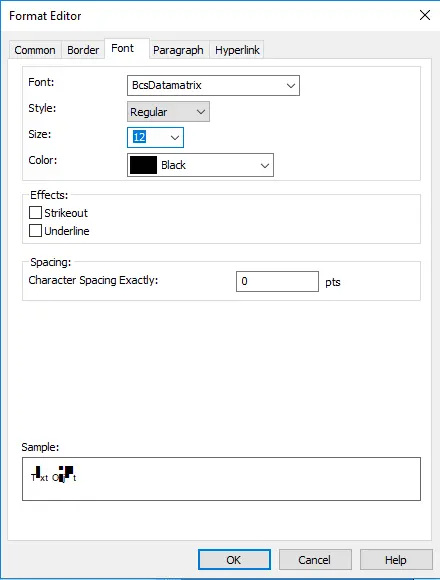
Right click Text Object and choose "Format Object" from context menu. Then choose "BcsDatamatrix" as font.
7. Datamatrix is created in your Crystal Reports.
Click OK button. You will get data matrix barcode in your report.