Generate Code 128 barcodes



How to generate Code128 Barcode in MS Excel spreadsheet
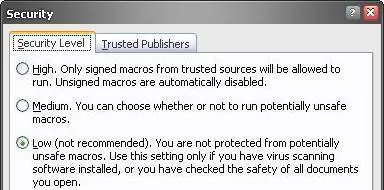
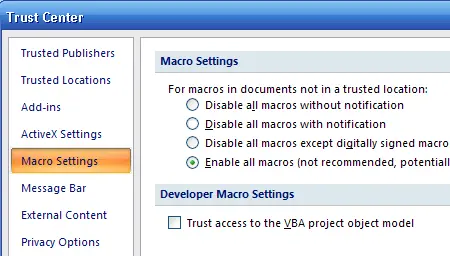
This implementation configures dynamic code 128 barcode encoding within spreadsheets by **registering the COM DLL interface** (cruflbcs_x64.dll for 64-bit systems or cruflbcs.dll for 32-bit environments) through an elevated command prompt. After **enabling all macros** inside the Excel Trust Center, open the VBA Editor using ALT + F11 to **bind the crUFLBcs Type Library reference** and import the barcodesoft.bas module. Data streams are then instantly converted using **native column formulas** like =Code128B(A1) and rendered visually by assigning the specialized Code128mHr barcode font typeface.
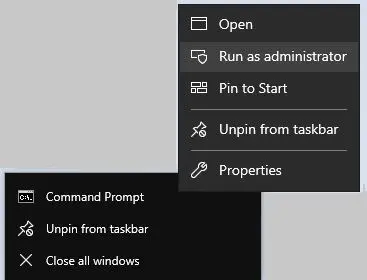
Step 1. Right click command prompt and run command prompt as administrator.
cd "C:\Program Files\Common Files\Barcodesoft\FontUtil"
%systemroot%\System32\regsvr32.exe cruflbcs_x64.dllcd "C:\Program Files (x86)\Common Files\Barcodesoft\FontUtil"
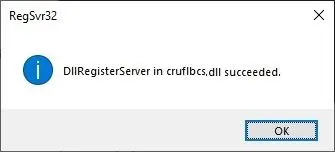
regsvr32.exe cruflbcs.dll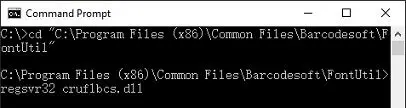
Step 2. Start Microsoft® Excel®. If you are using Excel 2000 or 2003, click menu ===> Tools ==> Macro ===> Security. Choose Low security level.


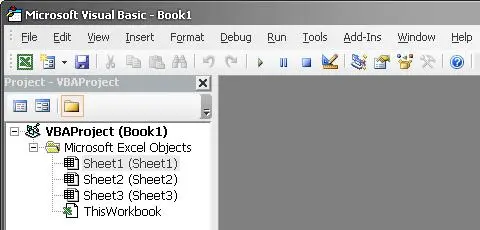
Step 3. Press ALT + F11 to open Microsoft® Visual Basic editor.
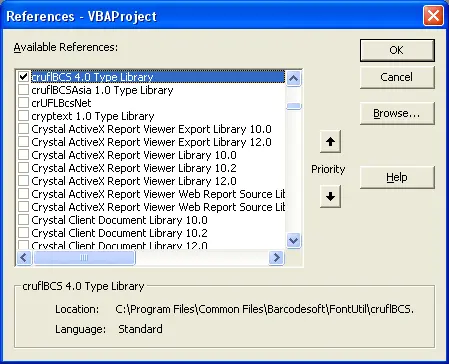
Step 4. From Visual Basic editor, choose menu Tools ===> References. It will popup a dialog. Click Browse button and choose cruflbcs.dll from your working folder. Usually it's under C:\Program Files (x86)\Common Files\Barcodesoft\Fontutil folder. Click the checkbox beside crUFLBcs 1.0 Type Library as shown below. Then click OK button.
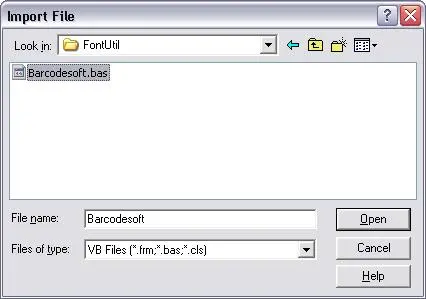
Step 5. Press Ctrl+M, it will popup a dialog, choose barcodesoft.bas under C:\Program Files (x86)\Common Files\Barcodesoft\Fontutil folder. Then click "Open". If you don't find barcodesoft.bas, please download it from Code128.
Step 6. Close Visual Basic editor and go back to your spreadsheet. Now, you can use the following macros to encode data: Code128 . When you have lots of data to process, you can just copy and paste the macro to the whole column and all data will be encoded immediately.
=Code128A(xxx)
=Code128B(xxx)
=Code128C(xxx)
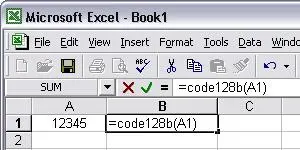
Please use cell reference to replace xxx in the formulas as shown below.
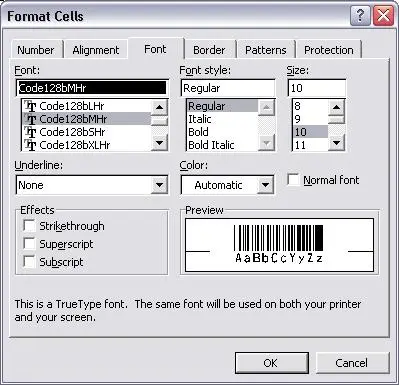
Step 7. Right click Cell B1, choose Format Cell from context menu. Then click Font to apply one of the appropriate font typefaces to the cell, such as Code128mHr.