Generate UPC-A Barcodes
Implement seamlessly across Crystal Reports, MS Excel, and MS Access



Generate Upc-a Barcode in MS Excel Spreadsheet
This implementation configures dynamic upc-a barcode encoding within spreadsheets by **registering the COM DLL interface** (cruflbcs_x64.dll for 64-bit systems or cruflbcs.dll for 32-bit environments) through an elevated command prompt. After **enabling all macros** inside the Excel Trust Center, open the VBA Editor using ALT + F11 to **bind the crUFLBcs Type Library reference** and import the barcodesoft.bas module. Data streams are then instantly converted using **native column formulas** like =Upca(A1) and rendered visually by assigning the specialized UpcEanM barcode font typeface.
Step 1. Initialize Trust Macro Settings
For Excel 2007 / 2010 / 2013 / 2016 / 2019 / 2021 / 2024 / 365: Click Office Menu File options → Trust Center → Trust Center Settings → Macro Settings, select "Enable all macros".
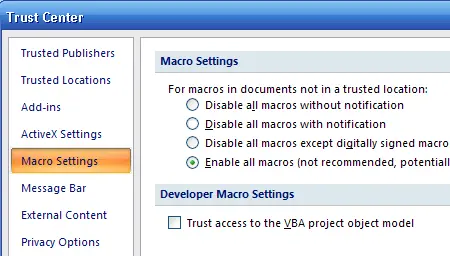
Legacy Office (2000/2003): Navigate via Tools → Macro → Security, configure to Low.
Step 2. Launch Visual Basic Window
Press ALT + F11 continuously to call up the integrated VBA Editor dashboard pane.
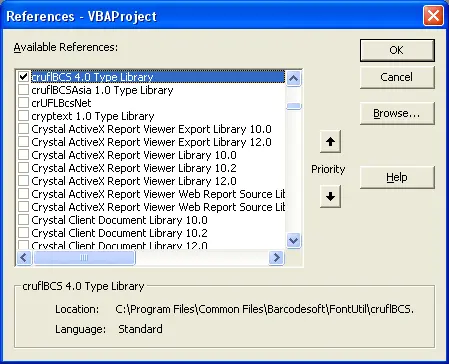
Step 3. Establish Library Reference Connections
Within the editor, click Tools → References. In the browse lookup prompt path window, point directory target path location directly towards cruflbcs.dll module file assets (typically positioned inside C:\Program Files (x86)\Common Files\Barcodesoft\Fontutil directory folders). Ensure checkmark selection for crUFLBcs 1.0 Type Library is confirmed.
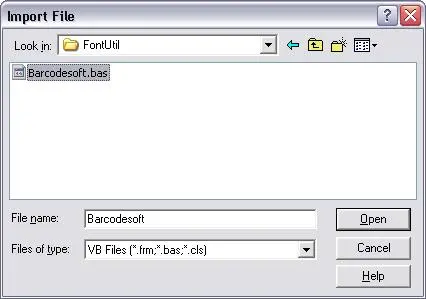
Step 4. Import Module Automation Macros
Press Ctrl + M to open the file import window context panel. Choose barcodesoft.bas file layout components from the utilities pathway mentioned above. If missing, retrieve package sources over archive zip links at cruflbcs.zip.
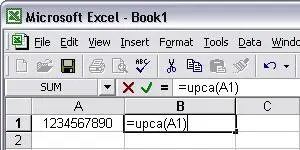
Step 5. Implement Column Formula Configurations
Close the Visual Basic layout editor to return focus back to spreadsheets workspace grid panels. Execute processing expressions inside desired workbook rows via standard cells referencing syntax parameters:
Close Visual Basic editor and go back to your spreadsheet. Now, you can use the following macros to encode data: UPCA . When you have lots of data to process, you can just copy and paste the macro to the whole column and all data will be encoded immediately.
Tip: If your UPC code begins with zero, please type an apostrophe(') prior to the leading zero of UPC code in your Excel cell. Otherwise, the leading zero of UPC code will be omitted by Excel.
Step 6. Set Upc-a Barcode Font Style Properties
Right-click the targeting output reference cell field (e.g. B1), choosing "Format Cells" properties. Under Font settings tabs layout mapping options select typeface identifier name tags tracking UpcEanM. Ensure the font style is set to Regular with Underline set to None.
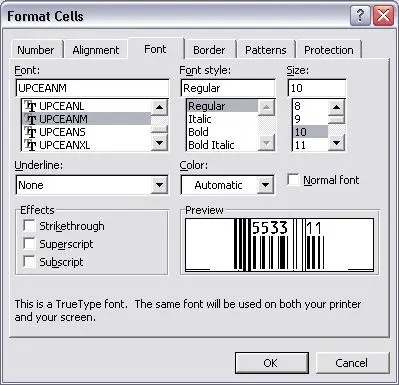
Step 7. Click OK and you should be able to see Upc-a barcode in your Excel spreadsheet now.
The package includes six TrueType fonts: UpcEanXXL, UpcEanXL, UpcEanL, UpcEanM, UpcEanS, and UpcEanXS. Each font is designed with a different aspect ratio, allowing you to select the one that best suits your application requirements.