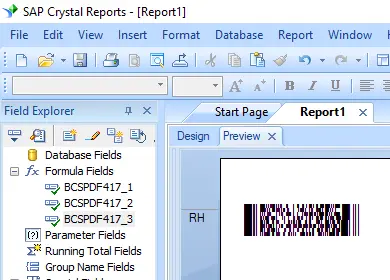
Generate pdf417 Barcodes
Implement seamlessly across Crystal Reports, MS Excel, and MS Access



Generate PDF417 Barcode in Crystal Reports
How to generate a PDF417 barcode in Crystal Reports?
To generate a PDF417 barcode in Crystal Reports, create a new formula field using the BCSPDF417EncodeCR function from the Barcodesoft UFL library. Pass your database fields as arguments, place the formula field on your design canvas, and apply the BcsPdf417 font family.
-
Step 1: Determine SAP Crystal Reports Bitness and Register DLL
Determine the bitness of your SAP Crystal Reports version. SAP Crystal Reports 2008 through 2016 are 32-bit, while SAP Crystal Reports 2020 and 2025 are 64-bit.
For 64-bit Crystal Reports (2020 / 2025):
Run Command Prompt as Administrator and execute:
                    cd "C:\Program Files\Common Files\Barcodesoft\FontUtil"

                    %systemroot%\System32\regsvr32.exe cruflbcs_x64.dll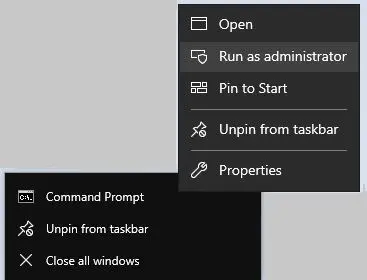
For 32-bit Crystal Reports (2008–2016):
Run Command Prompt as Administrator and execute:
                    cd "C:\Program Files (x86)\Common Files\Barcodesoft\FontUtil"

                    regsvr32.exe cruflbcs.dll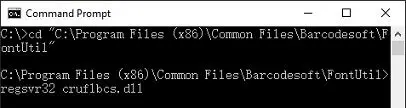
-
Step 2: Locate the Barcodesoft UFL Function
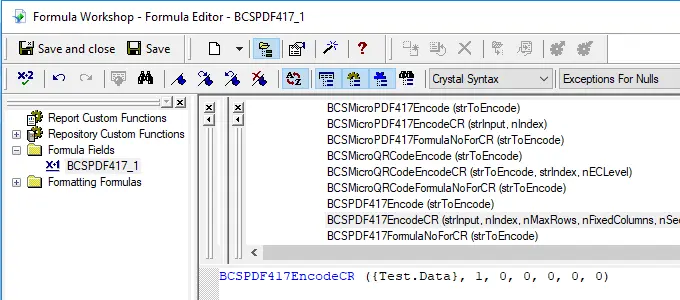
In Crystal Reports, navigate through the function explorer hierarchy: Functions List ⇒ Additional Functions ⇒ COM and .NET UFLs (u212com.dll) ⇒ Visual Basic UFLs. Double-click on the BCSPDF417EncodeCR function.
-
Step 3: Create a New Formula Field
Right-click Formula Fields and choose New... from the context menu. Name your new field "BcsPdf4171", then click "Use Editor".
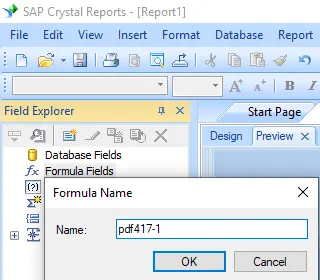
During the PDF417 encoding process, strings often produce more code words than expected. Since Crystal Reports limits formula fields to 255 characters, you must split the resulting PDF417 code words across multiple formula fields and concatenate them in a single Text Object. Check how many fields are needed by running this function:
BCSPDF417FormulaNoForCR({Test.Data}) -
Step 4: Create Multiple Formula Fields
Create multiple formula fields sequentially as listed below if the returned value of
BCSPDF417FormulaNoForCR({Test.Data})is larger than one. Then, place them side-by-side within the same Text Object container.BCSPDF417EncodeCR({Test.Data}, 1, 0, 0, 0, 0, 0)
BCSPDF417EncodeCR({Test.Data}, 2, 0, 0, 0, 0, 0)
BCSPDF417EncodeCR({Test.Data}, 3, 0, 0, 0, 0, 0)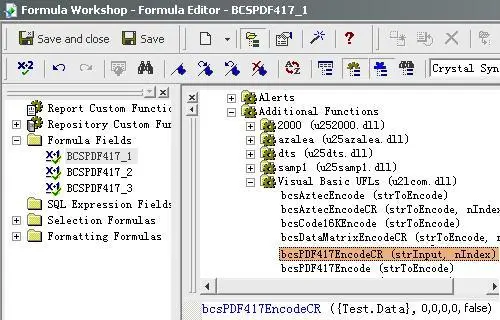
Parameter Positions Summary:
1st: Data string to encode | 2nd: Sequence chunk index | 3rd: MaxRow | 4th: FixedColumn | 5th: Security level | 6th: Compaction Mode | 7th: Truncated option
-
Step 5: Insert a Text Object in Your Report
Drag and drop all your sequential formula fields into this single text object. You will see fallback text or hex codes initially layout on your design canvas. Do not worry; the actual barcode will render once the typeface is configured.
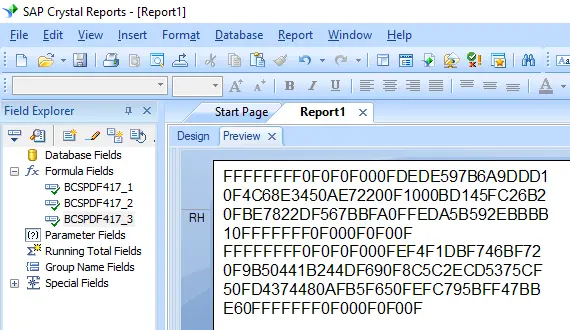
-
Step 6: Apply the BcsPdf417 Font Typeface
Right-click the Text Object container and choose Format Object from the context menu. Under the Font selection pane, choose "BcsPdf417" as your active font typeface.
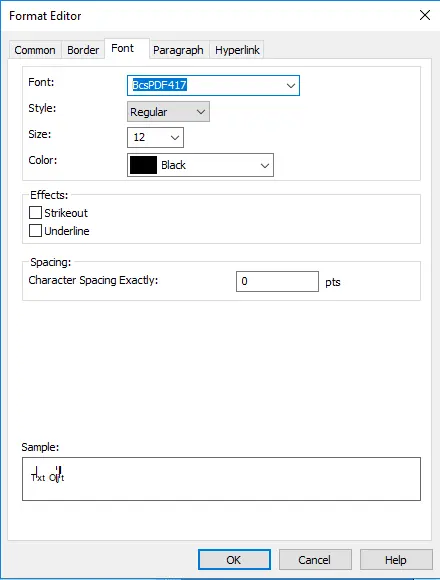
-
Step 7: Verify PDF417 Barcode Generation
Click the OK button. The fallback characters will instantly convert and display as a structured PDF417 stacked barcode inside your report template view.