Generate pdf417 Barcodes
Implement seamlessly across Crystal Reports, MS Excel, and MS Access



Generate pdf417 Barcode in MS Access Database
This workflow details how to generate a PDF417 barcode within an MS Access database report. It guides developers through adjusting Access Trust Center security, launching the VBA editor via ALT + F11, adding the cruflbcs.dll type library reference, and importing the barcodesoft.bas module. Finally, it explains how to apply the =pdf417([TableName].[FieldName]) expression to a report text box in Design View and assign the specialized BcsPdf417 barcode font.
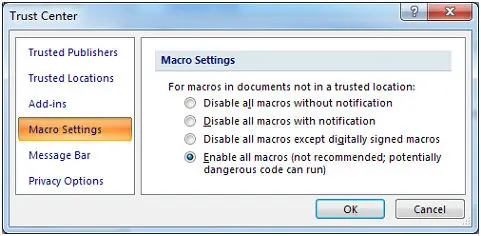
Step 1. Adjust Database Security Properties
Modern Access Versions: Access Options Menu panel → Trust Center workspace options setup layout → Macro Settings → Choose "Enable all macros".
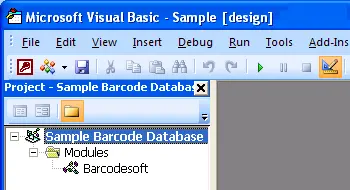
Step 2. Run Visual Basic Engine Window
Launch the VB development application layout environment immediately by applying keyboard hotkeys combination triggers: ALT + F11.
Step 3. Reference Type Library Extensions
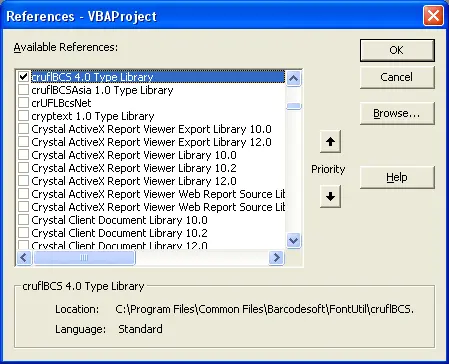
Open Tools → References options interface. Click Browse targeting library file matching path variables location to activate cruflbcs.dll dependencies tracking elements. Pick the select block next to crUFLBcs 5.0 Type Library, then finalize step saving actions.
Step 4. Append Module File Functions Library
Press Ctrl + M to append script structures data using standard template files barcodesoft.bas components layout definitions module framework package directly.
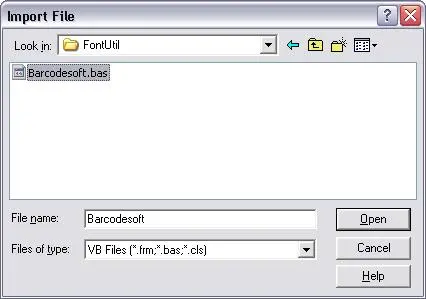
Step 5. Implement Report Macro Expressions
Exit the VBA developer windows, return safely back onto the database designer environment, and switch reports workspace views towards standard Design View layout structures. Type expression formatting values precisely into targeting object control sources textboxes fields:
Replace 'tableName' with your database table name and 'fieldName' with your code field name.
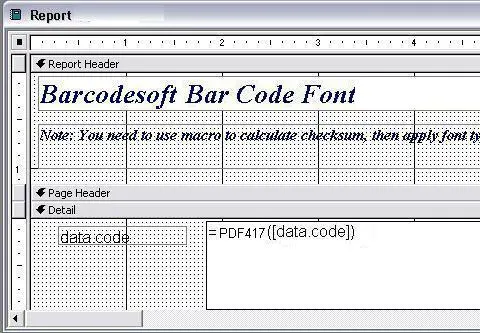
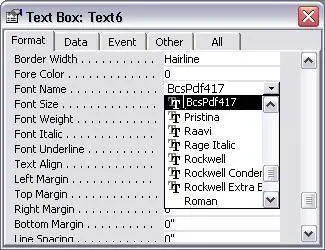
Step 6. Finalize Typography System Configurations
Right-click target reporting control text container objects fields box areas picking layout Properties list context menus options mapping block. Alter control styling parameters to handle text display rendering behavior utilizing font type name family records matching BcsPdf417 typeface systems.