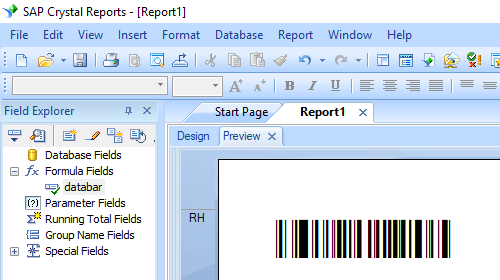

GS1-Databar Barcode Font
Generate GS1-Databar barcode in Crystal Reports
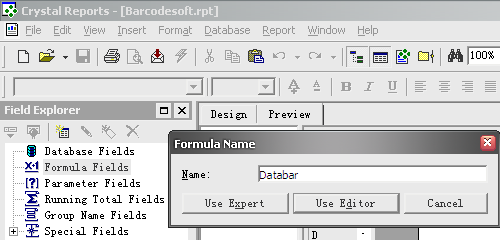
1. Open your crystal report. Right click Formula Fields, choose "New..." from the context menu.
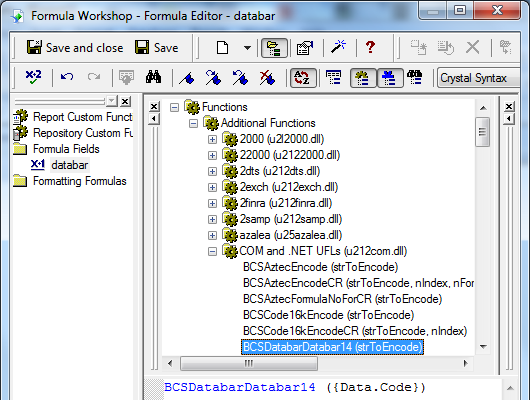
Type in "databar" in the Name textbox, then click "Use Editor".
2. Double click "BCSDatabarDatabar14" function from Functions ==> Additional Functions ==> Visual Basic UFLs as shown below.
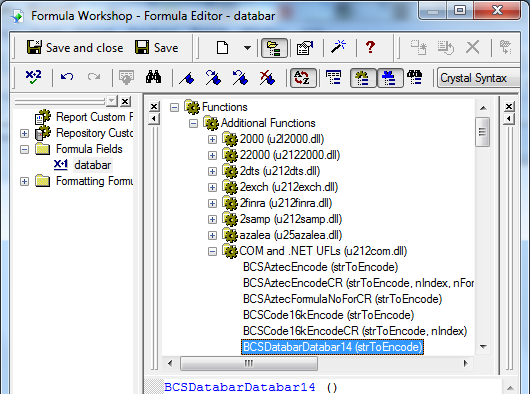
Then type in the database field as parameter for GS1Databar formula.
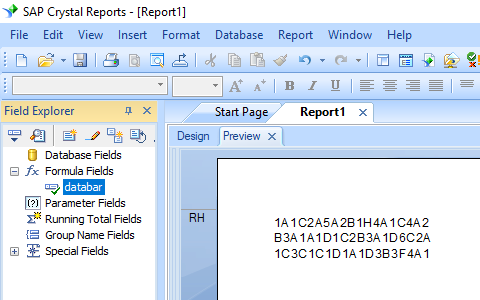
3. Drag and drop the GS1Databar formula field in your GS1 Databar crystal report design view.
4. Right click GS1Databar formula field and choose "Format Field" from context menu. Then choose either "BcsDatabarS" or "BcsDatabarM" as font typeface.
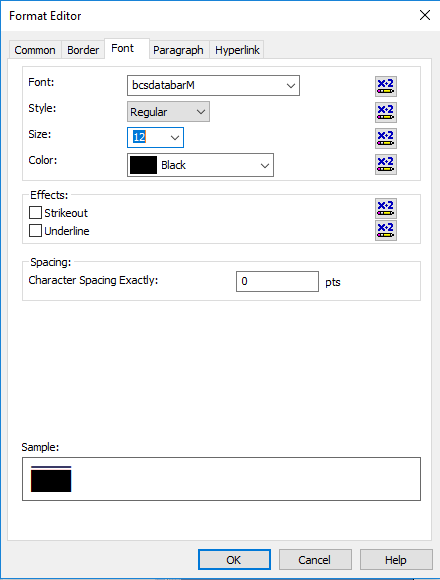
You will see GS1-Databar barcode in your Crystal Report.