Générer des codes-barres code39
Implémentez-les de manière transparente dans Crystal Reports, MS Excel et MS Access


Générer un code-barres code39 dans Crystal Reports
SAP Crystal Reports 2008 / 2011 / 2013 / 2016 sont en 32 bits.
SAP Crystal Reports 2020 / 2025 sont en 64 bits.
1.1 Si votre SAP Crystal Reports est en 64 bits, veuillez enregistrer le fichier cruflbcs_x64.dll 64 bits comme indiqué ci-dessous.
Faites un clic droit sur l'invite de commande et exécutez-la en tant qu'administrateur.
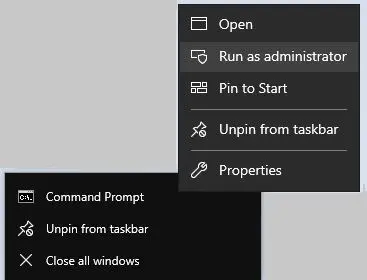
Pour enregistrer la DLL 64 bits, veuillez saisir les commandes suivantes
                cd "C:\Program Files\Common Files\Barcodesoft\FontUtil"

                %systemroot%\System32\regsvr32.exe cruflbcs_x64.dll
1.2 Si votre SAP Crystal Reports est en 32 bits, veuillez enregistrer le fichier cruflbcs.dll 32 bits comme indiqué ci-dessous.
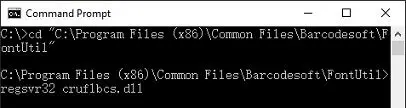
Saisissez les commandes suivantes pour enregistrer le fichier cruflbcs.dll 32 bits
                cd "C:\Program Files (x86)\Common
                Files\Barcodesoft\FontUtil"

                regsvr32.exe cruflbcs.dll
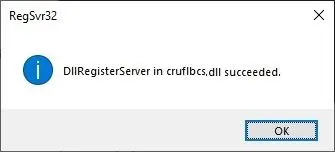
Si vous voyez la fenêtre suivante apparaître, votre enregistrement a réussi.
2. Localisez la fonction UFL.
Naviguez à travers la hiérarchie : Liste des fonctions ⇒ Fonctions supplémentaires ⇒ COM and .NET UFLs (u212com.dll) ⇒ Visual Basic UFLs. Double-cliquez sur la fonction BCSLinearcode39.

3. Créez un nouveau champ de formule
Ouvrez votre rapport Crystal Report. Faites un clic droit sur Champs de formule et choisissez "Nouveau..." dans le menu contextuel. Définissez le nom sur "BcsCode39", puis cliquez sur "Utiliser l'éditeur".

4. Utilisez un champ de base de données comme paramètre pour la formule code39
Saisissez le champ de la base de données comme paramètre pour la formule code39. Et cliquez sur le bouton "Enregistrer" pour sauvegarder le champ de formule code39.

5. Insérez le champ de formule code39 dans la vue de conception de votre rapport Crystal Report.
Glissez et déposez le champ de formule code39 dans la vue de conception de votre rapport Crystal Report. Vous verrez des caractères étranges. Ne vous inquiétez pas ! Vous n'avez pas encore appliqué la police de caractères de code-barres code39.

6. Appliquez la police de caractères Code39MHr.
Faites un clic droit sur l'objet texte et choisissez "Formater l'objet" dans le menu contextuel. Ensuite, choisissez "Code39MHr" comme police.
Le package comprend 14 polices TrueType dans une variété de tailles et de styles :
Avec texte lisible par l'homme : Code39XXL, Code39XL, Code39L, Code39M, Code39S, Code39XS et Code39XXS ;
Sans texte lisible par l'homme : Code39XXL, Code39XL, Code39L, Code39M, Code39S, Code39XS et Code39XXS.
Chaque police est conçue avec un rapport d'aspect différent, vous permettant de sélectionner celle qui convient le mieux aux exigences de votre application.

7. Le code-barres code39 est créé dans votre Crystal Reports.
Cliquez sur le bouton OK. Vous obtiendrez le code-barres code39 dans votre rapport.
