
code128 Code à barre
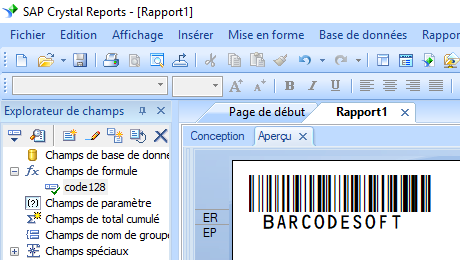
Générer des codes à barres code128 dans Crystal Reports
1. Faites un clic droit sur l'invite de commande et exécutez l'invite de commande en tant qu'administrateur.
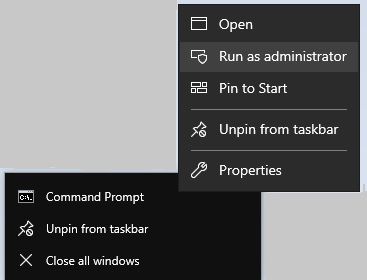
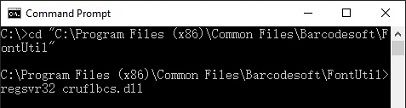
Tapez les commandes suivantes pour enregistrer cruflbcs.dll
                            cd "C:\Program Files (x86)\Common Files\Barcodesoft\FontUtil"

                            regsvr32.exe cruflbcs.dll
Pour enregistrer une DLL 64 bits, veuillez saisir les commandes suivantes
                            cd "C:\Program Files (x86)\Common Files\Barcodesoft\FontUtil"

                            %systemroot%\System32\regsvr32.exe cruflbcs_x64.dll
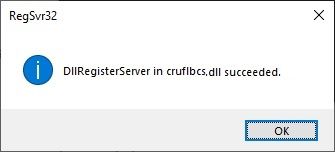
Si vous voyez la fenêtre pop-up suivante, votre inscription a réussi.
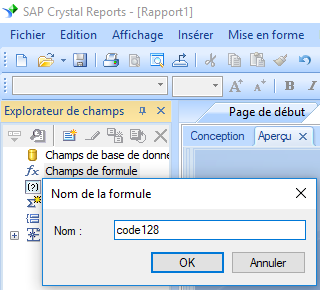
2. Ouvrez votre rapport de cristal. Cliquez avec le bouton droit sur Champs de formule, choisissez "Nouveau ..." dans le menu contextuel.
Tapez "code128" dans la zone de texte.
3. Cliquez Fonctions ==> Fonctions supplementaires ==> UFL COM et .NET(u212com.dll), Cliquez "BCSLinearCode128A" fonction.
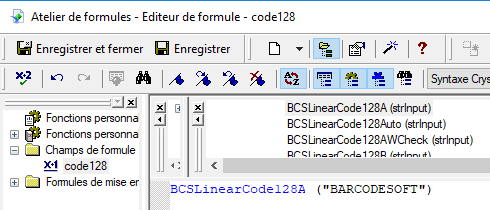
4. Tapez le champ de base de données en tant que paramètre pour la formule code128. cliquez sur le bouton "Enregistrer".
5. Faites glisser le champ de formule code128 vers votre rapport Crystal.
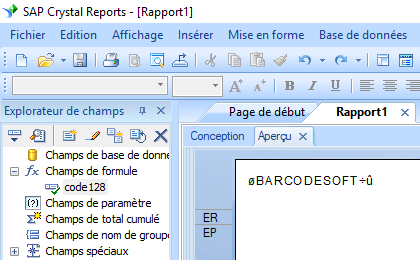
6. Clic droit champ de formule code128. Choisissez "Format du champ" dans le menu contextuel. Choisissez de police "code128AmHr".
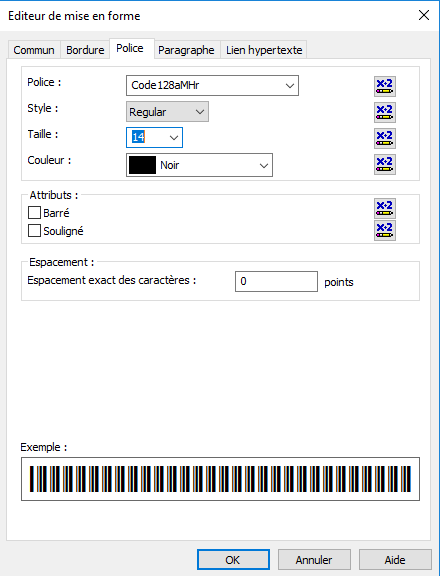
Cliquez sur le bouton OK. Vous verrez le code à barres code128 dans votre rapport.