
POSTNET Barcode
POSTNET Barcode, developed by the U.S. Postal Service for automatic mail-pieces sorting, stands for POSTal Numeric Encoding Technique.
POSTNET barcode always begins with a frame bar and ends with another frame bar. A correction character is required to be put in front of the right frame bar.
Barcodesoft POSTNET barcode software is able to encode five-digit ZIP code, 4-digit plus-code and 2-digit delivery point code.
Barcodesoft POSTNET barcode font is available in true type, PostScript and PCL formats and can be embedded into Adobe PDF files.
Barcodesoft POSTNet Demo is fully functional even with the "Demo" watermark.
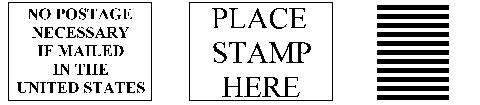
Barcodesoft POSTNET barcode package contains 3 fonts: postnet, planet and envelope.
When print at point size of 12, Barcodesoft POSTNET font characters have the following nominal dimensions, as listed below:
| Character Height | Character Width (inch) | |
|---|---|---|
| Full Bar | 0.125 inch | 0.02 inch |
| Half Bar | 0.05 inch | 0.02 inch |
Here is the mapping table of Barcodesoft POSTNET font
| Character | Mapping | |
|---|---|---|
 |
FIM A: (CRM with Postnet Barcode) | a |
 |
FIM B: (BRM with Postnet Barcode) | b |
 |
FIM C: (BRM without Postnet Barcode) | c |
 |
FIM D: (Mailpiece without Postnet Barcode) | d |
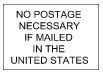 |
No Postage Necessary | e |
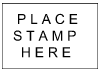 |
Place Stamp Here | f |
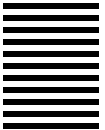 |
Horizontal Bar | g |
A windows-based utility for calculating POSTNET checksum is also provided in the package.
Envelope font is a smart and simple solution for printing envelopes.