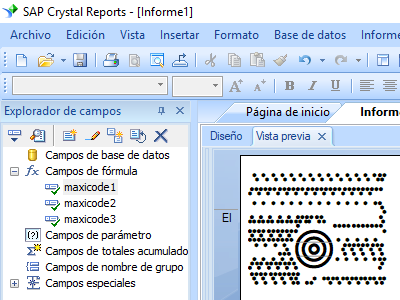

Generar MaxiCode en Crystal Reports
Imprimir MaxiCode desde Crystal Reports
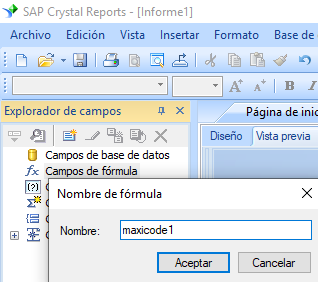
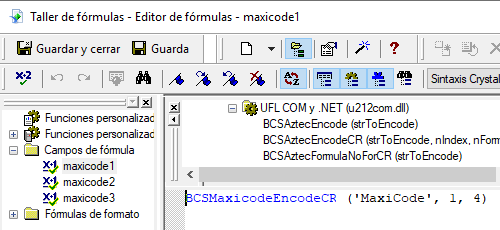
1. Iniciar Informe cristal. Haga clic con el botón derecho en Campos de fórmula, elija "Nuevo ..." en el menú contextual.
Escribe "MaxiCode1" en el cuadro de texto Nombre.
2. En la Lista de funciones ==> Funciones adicionales ==> UFL COM y .NET (u212com.dll) ==> UFLs de Visual Basic, elija la función "BCSMaxiCodeEncodeCR".
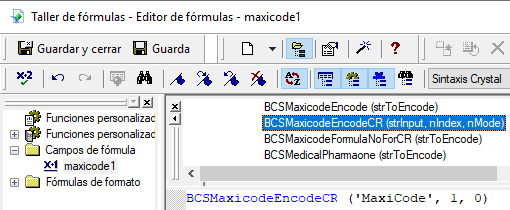
3. Escriba el campo de la base de datos como parámetro para la fórmula de MaxiCode. Haga clic en el botón "Guardar".
La longitud máxima del campo de fórmula es 254. Por lo tanto, tendremos que crear varios campos de fórmula.
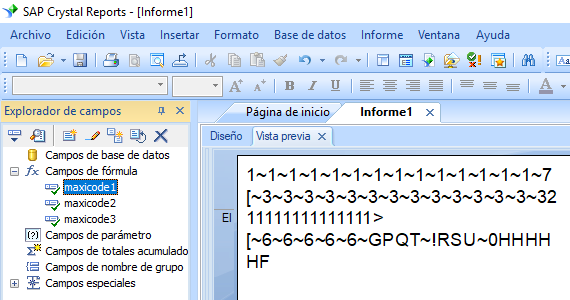
4. Arrastre el campo de fórmula del MaxiCode a su informe de Crystal.
5. Haga clic con el botón derecho en el campo de fórmula de MaxiCode y elija "Formato campo" en el menú contextual. Elija la fuente "BcsMaxiCode".
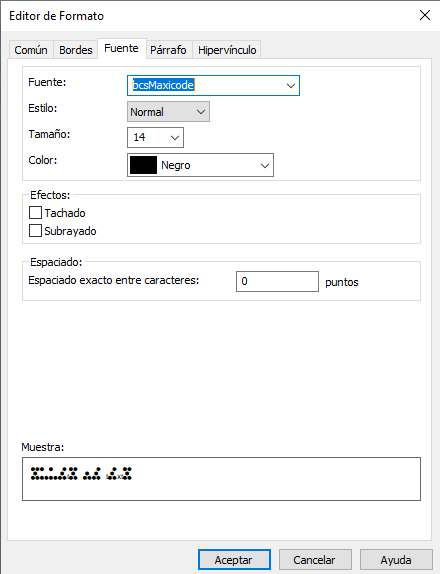
Haga clic en el botón Aceptar. Verá el MaxiCode en su informe.