Generar códigos de barras code39
Implementación fluida en Crystal Reports, MS Excel y MS Access


Generar código de barras code39 en Crystal Reports
SAP Crystal Reports 2008 / 2011 / 2013 / 2016 son de 32 bits.
SAP Crystal Reports 2020 / 2025 son de 64 bits.
1.1 Si su SAP Crystal Reports es de 64 bits, por favor registre el archivo cruflbcs_x64.dll de 64 bits como se indica a continuación.
Haga clic derecho en el símbolo del sistema y ejecútelo como administrador.
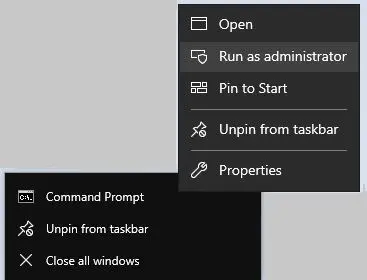
Para registrar la DLL de 64 bits, por favor escriba los siguientes comandos:
                cd "C:\Program Files\Common Files\Barcodesoft\FontUtil"

                %systemroot%\System32\regsvr32.exe cruflbcs_x64.dll
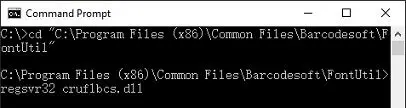
1.2 Si su SAP Crystal Reports es de 32 bits, por favor registre el archivo cruflbcs.dll de 32 bits como se indica a continuación.
Escriba los siguientes comandos para registrar cruflbcs.dll de 32 bits:
                cd "C:\Program Files (x86)\Common Files\Barcodesoft\FontUtil"

                regsvr32.exe cruflbcs.dll
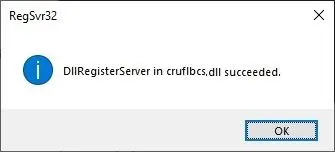
Si ve aparecer la siguiente ventana emergente, su registro fue exitoso.
2. Ubique la función UFL.
Navegue a través de la jerarquía: Lista de funciones ⇒ Funciones adicionales ⇒ UFLs COM y .NET (u212com.dll) ⇒ UFLs de Visual Basic. Haga doble clic en la función BCSLinearcode39.

3. Cree un nuevo campo de fórmula
Abra su Crystal Report. Haga clic derecho en Campos de fórmula y elija "Nuevo..." desde el menú contextual. Asigne el nombre "BcsCode39", luego haga clic en "Usar editor".

4. Use un campo de base de datos como parámetro para la fórmula de code39
Escriba el campo de la base de datos como parámetro para la fórmula de code39. Y haga clic en el botón "Guardar" para guardar el campo de fórmula de code39.

5. Inserte el campo de fórmula code39 en la vista de diseño de su Crystal Report.
Arrastre y suelte el campo de fórmula code39 en la vista de diseño de su Crystal Report. Verá algunos caracteres extraños. ¡No se preocupe! Aún NO ha aplicado la fuente de código de barras code39.

6. Aplique el tipo de fuente Code39MHr.
Haga clic derecho en el Objeto de Texto y elija "Formatear objeto" en el menú contextual. Luego elija "Code39MHr" como fuente.
El paquete incluye 14 fuentes TrueType en una variedad de tamaños y estilos:
Con texto legible por humanos: Code39XXL, Code39XL, Code39L, Code39M, Code39S, Code39XS y Code39XXS;
Sin texto legible por humanos: Code39XXL, Code39XL, Code39L, Code39M, Code39S, Code39XS y Code39XXS.
Cada fuente está diseñada con una relación de aspecto diferente, lo que le permite seleccionar la que mejor se adapte a los requisitos de su aplicación.

7. El código de barras code39 se ha creado en su Crystal Reports.
Haga clic en el botón Aceptar. Obtendrá el código de barras code39 en su informe.
