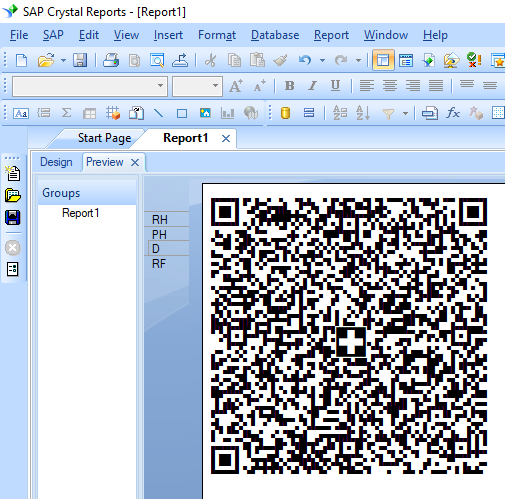
Swiss QR Code in Crystal Reports generieren


Generieren Sie in Crystal Reports qrcode
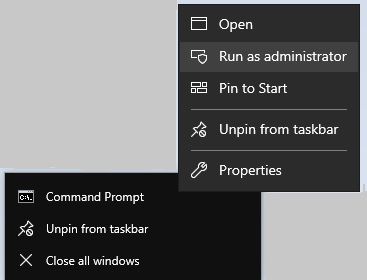
1. Klicken Sie mit der rechten Maustaste auf die Eingabeaufforderung und führen Sie die Eingabeaufforderung als Administrator aus.
Geben Sie die folgenden Befehle ein, um cruflbcs.dll zu registrieren
                        cd "C:\Program Files (x86)\Common Files\Barcodesoft\FontUtil"

                        regsvr32.exe cruflbcs.dll
Um die 64-Bit-DLL zu registrieren, geben Sie bitte die folgenden Befehle ein
                        cd "C:\Program Files (x86)\Common Files\Barcodesoft\FontUtil"

                        %systemroot%\System32\regsvr32.exe cruflbcs_x64.dll
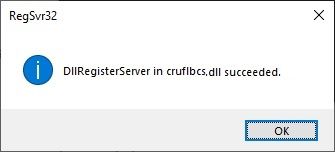
Wenn das folgende Fenster erscheint, war Ihre Registrierung erfolgreich.
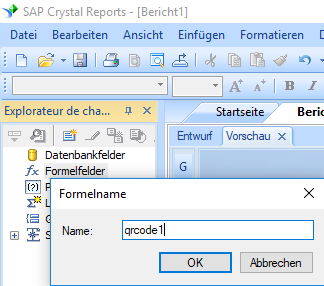
2. Starten crystal report. Klicken Sie mit der rechten Maustaste auf Formelfelder und wählen Sie "Neu ..." aus dem Kontextmenü.
Geben Sie "qrcode1" in das Textfeld Name ein. Klicken "Speichern und schließen".
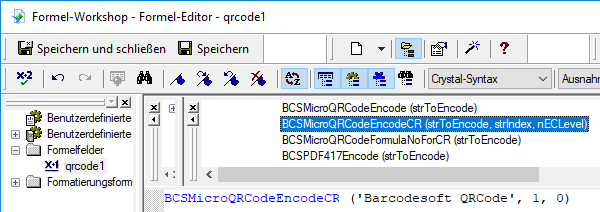
3. Wählen Sie in "Funktionen ==> Zusätzliche Funktionen ==> COM und .NET -UFLs (u212com.dll)" die Funktion "BCSqrcodeEncodeCR" aus.
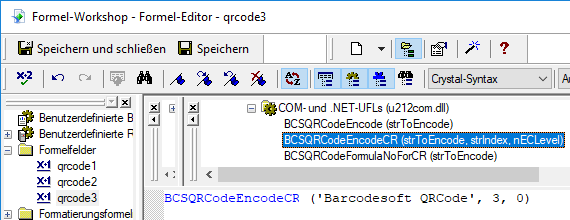
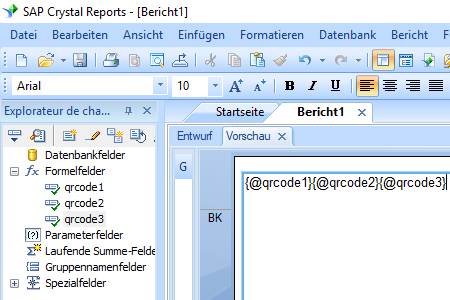
4. Fügen Sie ein Textobjekt in Ihren Bericht ein. Erstellen Sie mehrere Formelfelder wie unten aufgeführt. Ziehen Sie sie dann per Drag-and-Drop nacheinander innerhalb desselben Textobjekts.
Local stringVar codestr := "SPC 0200 1 CH3230000001876930777 K Swisscom (Schweiz) AG Alte Tiefenaustrasse 6 3050 Bern CH 320.55 CHF S IFOB GmbH Adligenswilerstr. 119 6006 Luzern CH QRR 000533882377025699530920229 Rechnungskonto: BSC:BAC:5338823 / Monat: 01.08.22 - 31.08.22 / Zahlbar bis: 29.09.2022 EPD";
BCSQRCodeEncodeCR(codestr, 1, 3, 0, 1)
Local stringVar codestr := "SPC 0200 1 CH3230000001876930777 K Swisscom (Schweiz) AG Alte Tiefenaustrasse 6 3050 Bern CH 320.55 CHF S IFOB GmbH Adligenswilerstr. 119 6006 Luzern CH QRR 000533882377025699530920229 Rechnungskonto: BSC:BAC:5338823 / Monat: 01.08.22 - 31.08.22 / Zahlbar bis: 29.09.2022 EPD";
BCSQRCodeEncodeCR(codestr, 2, 3, 0, 1)
Local stringVar codestr := "SPC 0200 1 CH3230000001876930777 K Swisscom (Schweiz) AG Alte Tiefenaustrasse 6 3050 Bern CH 320.55 CHF S IFOB GmbH Adligenswilerstr. 119 6006 Luzern CH QRR 000533882377025699530920229 Rechnungskonto: BSC:BAC:5338823 / Monat: 01.08.22 - 31.08.22 / Zahlbar bis: 29.09.2022 EPD";
BCSQRCodeEncodeCR(codestr, 3, 3, 0, 1)
Local stringVar codestr := "SPC 0200 1 CH3230000001876930777 K Swisscom (Schweiz) AG Alte Tiefenaustrasse 6 3050 Bern CH 320.55 CHF S IFOB GmbH Adligenswilerstr. 119 6006 Luzern CH QRR 000533882377025699530920229 Rechnungskonto: BSC:BAC:5338823 / Monat: 01.08.22 - 31.08.22 / Zahlbar bis: 29.09.2022 EPD";
BCSQRCodeEncodeCR(codestr, 4, 3, 0, 1)
Local stringVar codestr := "SPC 0200 1 CH3230000001876930777 K Swisscom (Schweiz) AG Alte Tiefenaustrasse 6 3050 Bern CH 320.55 CHF S IFOB GmbH Adligenswilerstr. 119 6006 Luzern CH QRR 000533882377025699530920229 Rechnungskonto: BSC:BAC:5338823 / Monat: 01.08.22 - 31.08.22 / Zahlbar bis: 29.09.2022 EPD";
BCSQRCodeEncodeCR(codestr, 5, 3, 0, 1)
Local stringVar codestr := "SPC 0200 1 CH3230000001876930777 K Swisscom (Schweiz) AG Alte Tiefenaustrasse 6 3050 Bern CH 320.55 CHF S IFOB GmbH Adligenswilerstr. 119 6006 Luzern CH QRR 000533882377025699530920229 Rechnungskonto: BSC:BAC:5338823 / Monat: 01.08.22 - 31.08.22 / Zahlbar bis: 29.09.2022 EPD";
BCSQRCodeEncodeCR(codestr, 6, 3, 0, 1)
Bitte verwenden Sie in Ihrem Text wie oben gezeigt das ( ) als Datentrennzeichen.
Der 3. Parameter ist die Fehlerkorrekturstufe. Bitte setzen Sie es für Fehlertoleranz auf 3.
Der sechste Parameter im Formelfeld ist der Schweizer Flaggenschalter. Setzen Sie ihn auf 1, um eine Schweizer Flagge in der Mitte Ihres QR-Codes zu erzeugen.
5. Ziehen Sie das qrcode-Formelfeld in Ihren Kristallbericht.
6. Klicken Sie mit der rechten Maustaste auf das qrcode-Formelfeld. Wählen Sie "Formatfeld" aus dem Kontextmenü. Wählen Sie dann die Schriftart "BcsQRCodeSwissFlag".
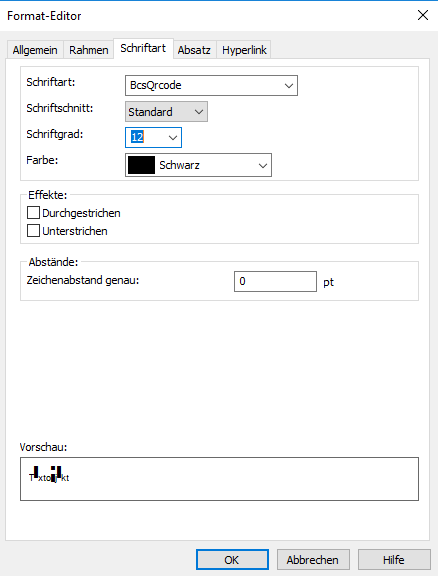
OK klicken. QRCode mit einer Schweizer Flagge erscheint in Ihrem Bericht.