Barcodesoft Inc.
4/25/2024
We are a team of IT professionals headquartered in Toronto, Ontario.
We provide automatic identification solutions to generate bar codes for users.
We invite you to visit our website.
-

Code39 Barcode Fonts
Code39, also known as 3 of 9 code, USD-3 and LOGMARS, is a widely used bar code symbology defined in ISO/IEC 16388:2007 standard.
Code39
-

Code128 Barcode Fonts
Code 128, described in ISO/IEC 15417, is good at encoding alpha-numeric data and numeric-only data. Code128 has three subsets: code128A, code128B and code128C.
Code128 -

UPC-A EAN13 Barcode Fonts
UPC-A barcode ( plus UPC-E, EAN-13, EAN-8, ISBN and Bookland), is everywhere today. EAN13 barcode encodes 12 digits of numeric data and a check digit. What EAN13 encodes is also called GTIN13. UPCA barcode encodes 11 digits of numeric data plus a check digit.
UPC-A -

MICR E-13B Font
MICR is an acronym for Magnetic Ink Character Recognition, familiar to us from its use in banking industry. The American Bankers Association began using MICR E-13B font and MICR system as the technology for automatic check processing since 1958.
MICR E-13B Font -

CMC-7 Font
CMC-7 font character sets are widely used in automatic check-processing of banking industry throughout Europe, South America and Asia. CMC-7 font characters need to be printed with magnetic ink for the purpose of automatic character recognition.
CMC-7 Font -

QRCode Encoder
QR Code is also known as Quick Response Code. QR Code is a 2D matrix barcode symbology. QRCode Matrix size ranges between 21 X 21 modules and 177 x 177 modules. Each module is either black or white.
QRCode -

PDF417 Barcode
PDF 417, a multi-row 2-D barcode symbology, has a unique physical structure and large data capacity.
PDF417
PDF417 empowers you to encode more than 1000 alpha-numeric characters within one symbol. PDF417 is able to encode ASCII and Extended ASCII characters.
-

Data Matrix Barcode
Data Matrix barcode is a well-designed symbology that is able to encode both 128 ASCII characters (ANSI X3.4) and values 128 to 255 characters, known as extended ASCII (ISO 8859-1).
Data Matrix
Data Matrix barcode is able to encode up to 1000 alpha-numeric characters. Therefore, Data Matrix is a good solution for encoding large quantities of data in one data matrix barcode symbol.
-

Aztec Code
Aztec Bar Code is defined by ISO/IEC 24778:2008 standard.
Aztec Code
Its unique centered finder pattern and module placement algorithm makes Aztec bar code looks like a maelstrom. Aztec barcode Matrix size ranges between 15 X 15 modules and 151 x 151 modules. Each module is either black or white.
-

MaxiCode
MaxiCode is a matrix symbology consists of hexagonal modules surrounding 3 concentric rings. A MaxiCode barcode consists of a primary message and a secondary message. Each message has its own data and error correction codewords. After encoding, primary message and secondary message are interleaved together. Every binary code can find its location in the maxicode barcode symbol precisely.
MaxiCode
-
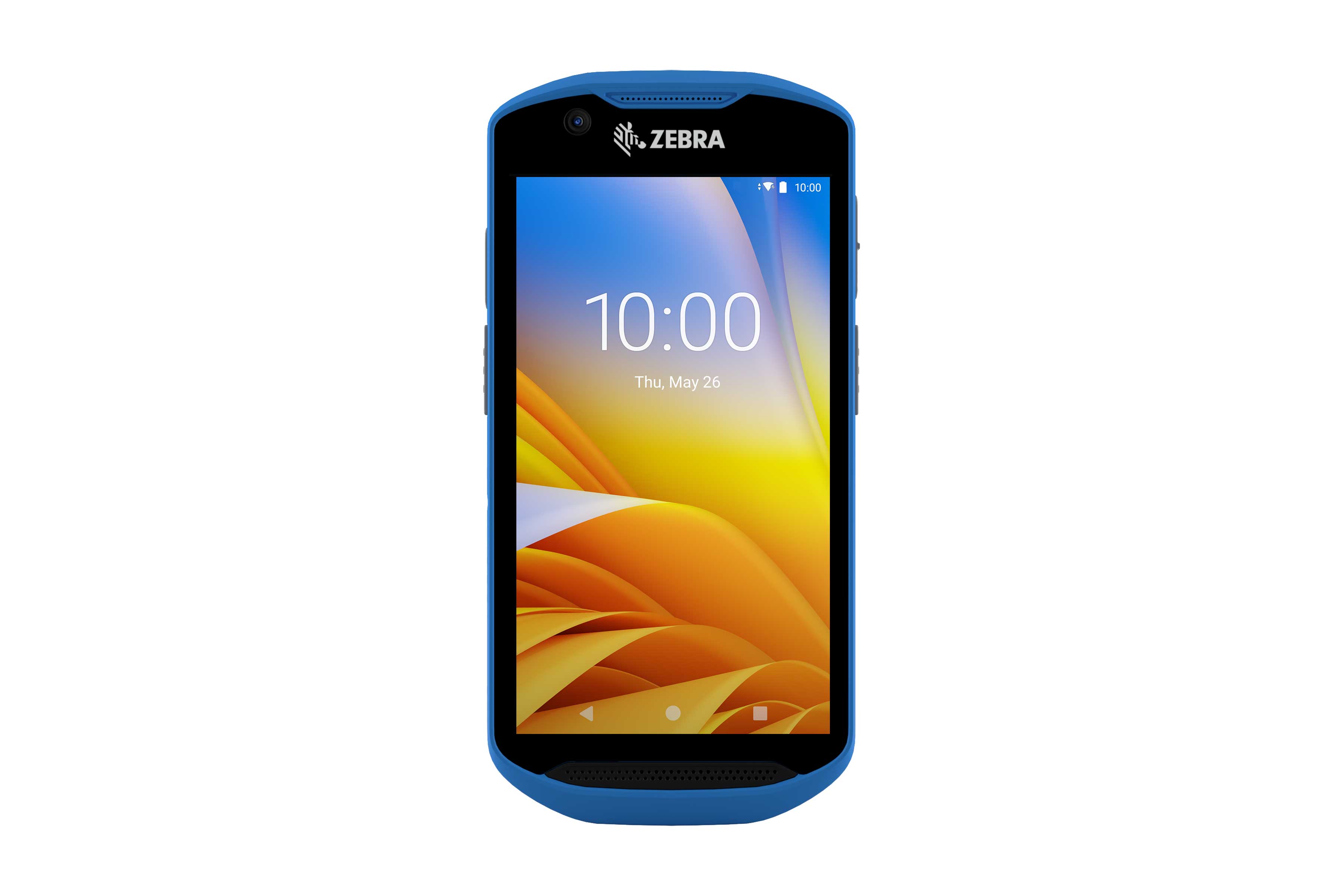
Zebra TC52 Mobile Computer
The new TC52 Touch Computers enhance the already successful line of TC51 devices, taking another step into the future of enterprise-class touch computing. With the user-friendly design of Android, integrated with data-driven business features, these devices help workers increase productivity while lowering process cycle times.
Zebra TC52 Mobile Computer
-
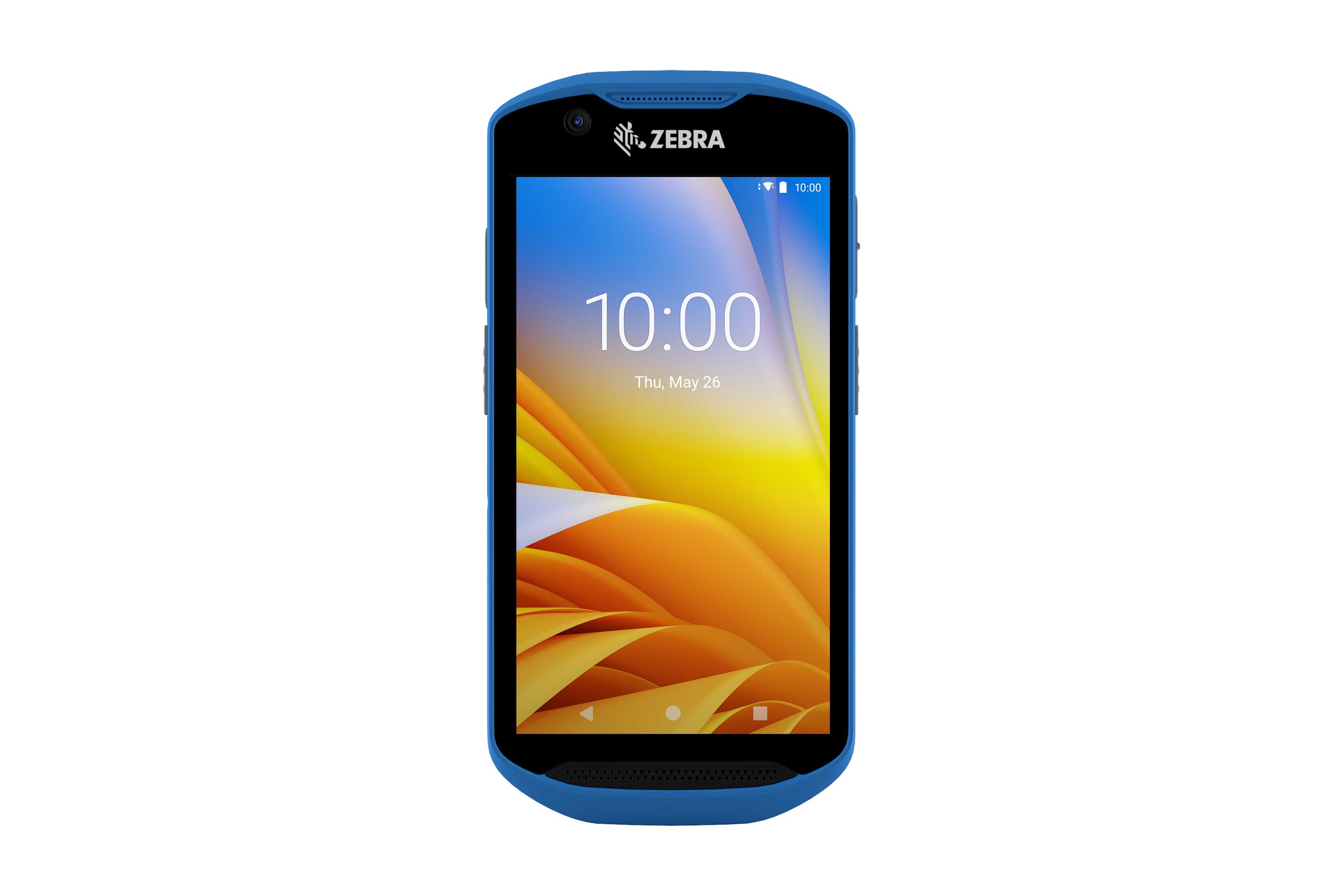
Zebra TC57 Mobile Computer
The new TC57 Touch Computers enhance the already successful line of TC56 devices, taking another step into the future of enterprise-class touch computing. With the user-friendly design of Android, integrated with data-driven business features, these devices help workers increase productivity while lowering process cycle times.
Zebra TC57 Mobile Computer
-
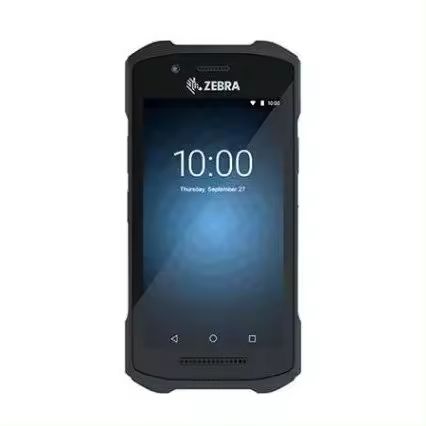
Zebra TC26 Mobile Computer
Unleash the power of ultimate savings with our TC26 Touch Computers — tailored to meet the needs of businesses of all sizes. Equip your team with these state-of-the-art devices without burning a hole in your pocket.
Zebra TC26 Mobile Computer
-
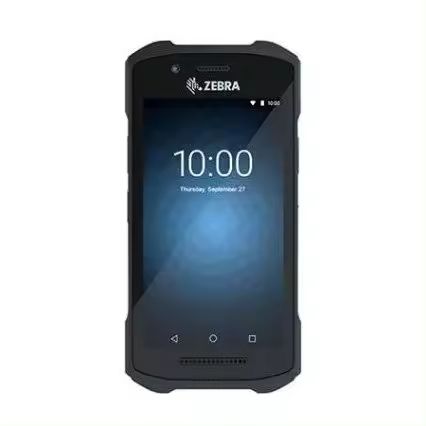
Zebra TC21 Mobile Computer
Experience the power of ultimate affordability coupled with functionality in our TC21 Touch Computers — meticulously crafted to scale to both small and large enterprises. Invest wisely in enhancing your team's operational efficiency with these superior devices without stretching your budget.
Zebra TC21 Mobile Computer
-

GS1-Databar Barcode
GS1-Databar is formerly known as Reduced Space Symbology (RSS). It is defined in ISO/IEC 24724:2011 standard. It encodes more information than UPC/EAN family bar code, and it occupies less space than UPC/EAN bar code. Therefore, GS1-Databar can be printed on small items. Additionally, GS1-Databar can bear GS1 Application Identifier (AI) such as Price, Expiry Date, Coupon Code, and Serial Number etc. GS1-Databar accepts numeric-only data.
GS1-Databar
-
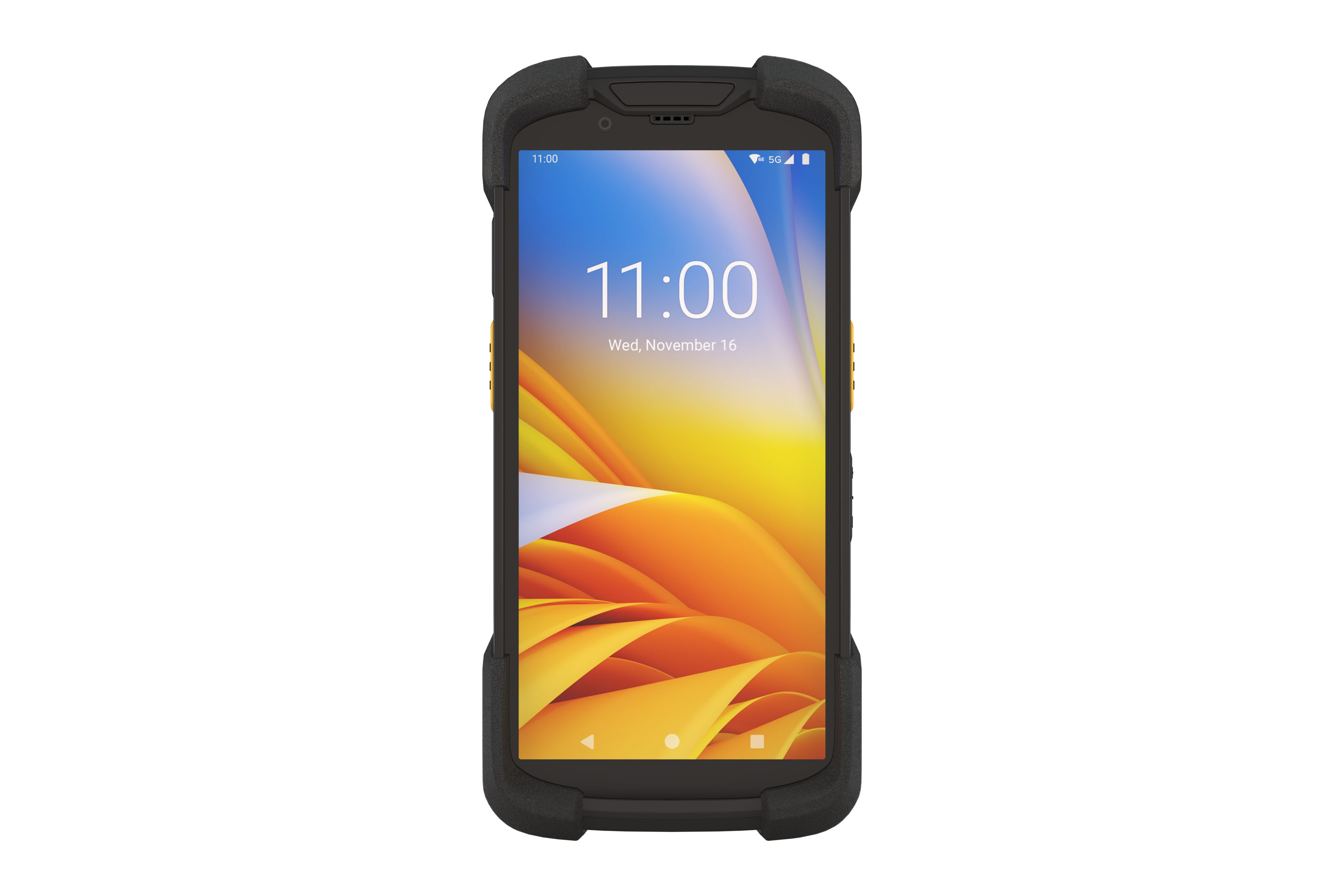
Zebra TC72 Mobile Computer
Empower your front-line workers who interact with your most valuable asset — your customers, with the ultimate device designed to elevate customer service by delivering peak efficiency and unrivaled reliability — the TC72 Android Touch Computers. Built upon the successful TC7X series, these touch computers are meticulously designed to transform operations within and beyond your business premises. We present a smartphone-like experience backed by robust build quality to withstand rigorous daily usage, and a novel platform delivering unrivaled capabilities in its class. Choose the TC72 to gain a competitive edge in your business operations.
Zebra TC72 Mobile Computer
-
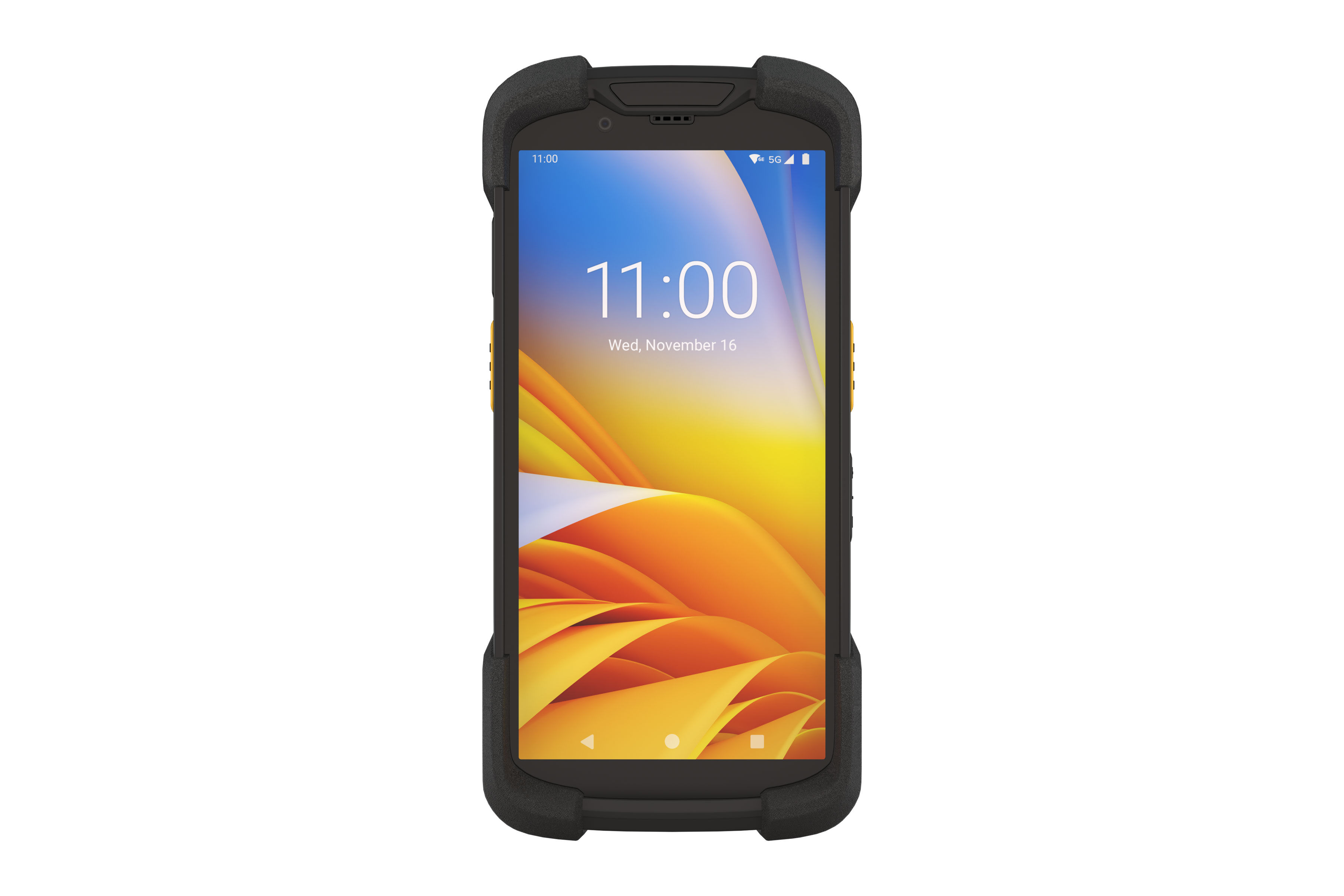
Zebra TC77 Mobile Computer
Empower your front-line workers who interact with your most valuable asset — your customers, with the ultimate device designed to elevate customer service by delivering peak efficiency and unrivaled reliability — the TC77 Android Touch Computers. Built upon the successful TC7X series, these touch computers are meticulously designed to transform operations within and beyond your business premises. We present a smartphone-like experience backed by robust build quality to withstand rigorous daily usage, and a novel platform delivering unrivaled capabilities in its class. Choose the TC77 to gain a competitive edge in your business operations.
Zebra TC77 Mobile Computer
-
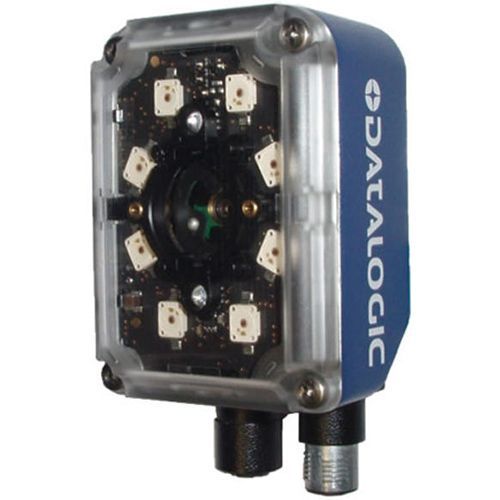
Datalogic Matrix 300N barcode scanner
The Matrix 300N stands out as an ultra-compact barcode reader designed specifically to excel in high-speed and Direct Part Marking (DPM) applications.
Datalogic Matrix 300N barcode scanner
-

Farrington 7B Font
Farrington 7B font is also known as 7B-OCR font. Farrington 7b font is used to print the embossed characters on identification cards and credit cards. Barcodesoft Farrington 7B font consists of numeral characters 0 to 9.
Farrington 7B Font
-

SEMI OCR Font
Barcodesoft SEMI OCR font package provides a simple solution for laser-marking alphanumeric data on the front surface of wafers and allows automatic Optical Character Reading (OCR).
SEMI OCR Font
-
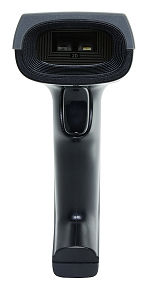
Rational Quantum X-18130 barcode scanner
Rational Quantum X-18130 barcode scanner reads linear and 2D bar codes on smart phone and computer monitor.
Rational Quantum X-18130 barcode scanner
-
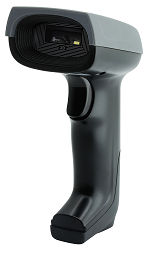
Rational Quantum X-18134 barcode scanner
Rational Quantum X-18134 barcode scanner reads linear and 2D bar codes printed on invoices, shipping labels and packing list.
Rational Quantum X-18134 barcode scanner
-
KSA E-Invoice QRCode
Barcodesoft KSA QR Code Generator automatically support tag, length and value (TLV) format and base64 encoding. QR Codes are compliant with KSA Zakat and Tax Authority of Saudi Arabia Kingdom.
KSA E-Invoice QRCode
-
Free online barcode reader
We read your barcode online for free, including qrcode, GS1128 barcode, data matrix and PDF417.
Free online barcode reader
-
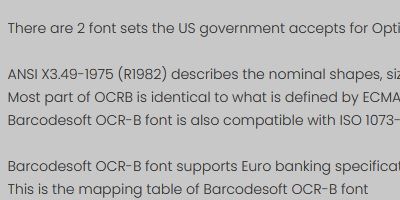
Free online Optical Character Recognition
Optical character recognition (OCR) is the electronic or mechanical conversion of images of typed, handwritten, or printed text to machine-encoded text.
Free online Optical Character Recognition
-
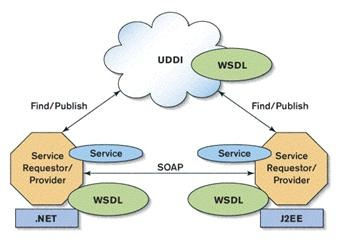
Barcode Web Service
Webservice is a software system designed to support interoperable machine-to-machine interaction over a network.
Barcode Web Service