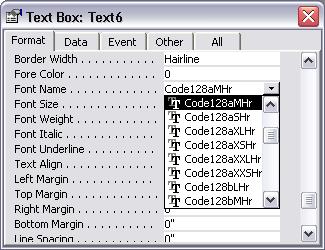

Generate Code 128 barcodes in MS Access database
Integrate Code128 Barcode With MS Access
1. Right click command prompt and run command prompt as administrator.
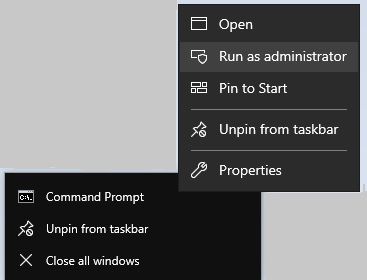
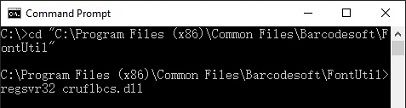
Type in the following commands to register cruflbcs.dll
                            cd "C:\Program Files (x86)\Common Files\Barcodesoft\FontUtil"

                            regsvr32.exe cruflbcs.dll
To register 64-bit DLL, please type in the following commands
                            cd "C:\Program Files (x86)\Common Files\Barcodesoft\FontUtil"

                            %systemroot%\System32\regsvr32.exe cruflbcs_x64.dll
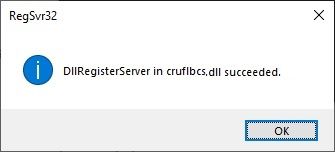
If you see the following Window pop up, your registration was successful.
2. Start Microsoft® Access®.
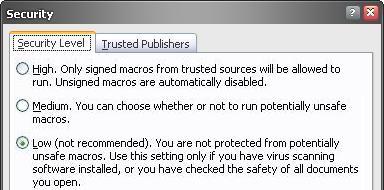
If you are using Access 2000 or 2003, click menu ===> Tools ==> Macro ===> Security. Choose Low security level.
If you are using Access 2007 / 2010 / 2013 / 2016 / 2019, click the Microsoft Office Button.


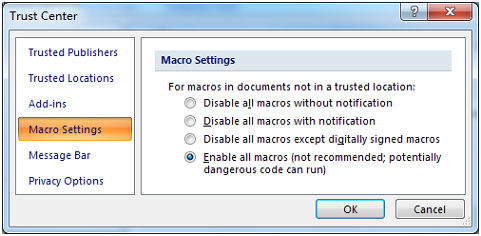
Then click Access Options, choose Trust Center. In the Macro Settings category, under Macro Settings, choose "Enable all macros" as shown below.
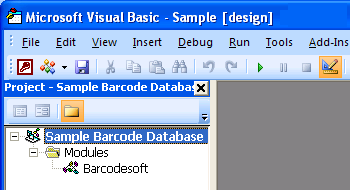
3. Press ALT + F11 to open Microsoft® Visual Basic editor.
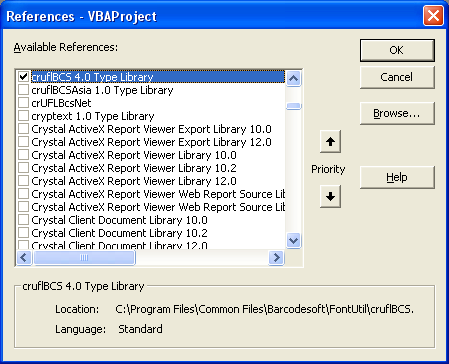
4. From Visual Basic editor, choose menu Tools ===> References. It will popup a dialog. Click Browse button and choose cruflbcs.dll from your working folder.
Usually it's under C:\Program File (x86)\CommonFiles\Barcodesoft\Fontutil folder.
Click the checkbox beside crUFLBcs 4.0 Type Library as shown below. Then click OK button.
5. Press Ctrl+M, it will popup a dialog, choose barcodesoft.bas under C:\Program File (x86)\CommonFiles\Barcodesoft\Fontutil folder. Then click "Open".
If you don't find barcodesoft.bas, please download it from code128.
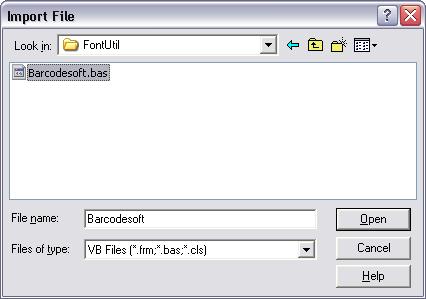
6. Close Visual Basic and go back to your Access database. Now, create a report in Design view and type in one of the following macros in the field where you want to show code128 barcode before apply font typeface, such as Code128mHr:
=Code128A([data.code])
=Code128B([data.code])
=Code128C([data.code])
Please notice that 'data' is the Table name, 'code' is the Field name.
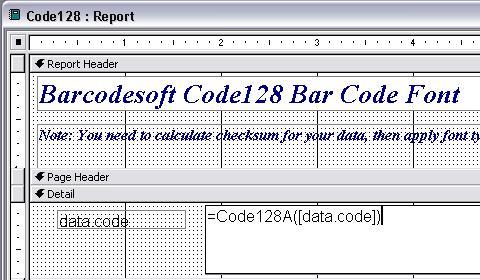
7. Right click the field you want to display code128 barcode. Choose Properties from context menu. Apply one of the appropriate font typefaces to the field, such as code128mHr.