

Create Barcode in FileMaker
FileMaker, code39 barcode, Code128, UPCA, EAN13, PDF417, Data Matrix, QRCode, GS1128
Barcodesoft FileMaker Linear Barcode Plug-in and FileMaker 2D Barcode Plug-in can be easily integreated with different versions of Filemaker (Ver. 7 and up) to generate barcodes.
Barcodesoft FileMaker Barcode Plug-in supports all major linear and 2D barcode symbologies:
Code 39, Code 128, UPC-A, EAN13, UCC/EAN-128, Interleaved 2of5, POSTNet, PDF417, Data Matrix, QRCode, and Aztec barcode.
1. After you download Barcodesoft FileMaker Barcode Plug-in, please copy it into your FileMaker Extensions folder. Then restart FileMaker.
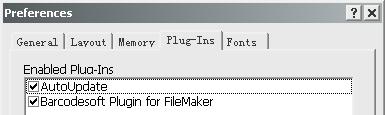
2. Choose menu Edit - Preferences - code words and make sure "Barcodesoft Plug-in for FileMaker" is enabled as indicated below.
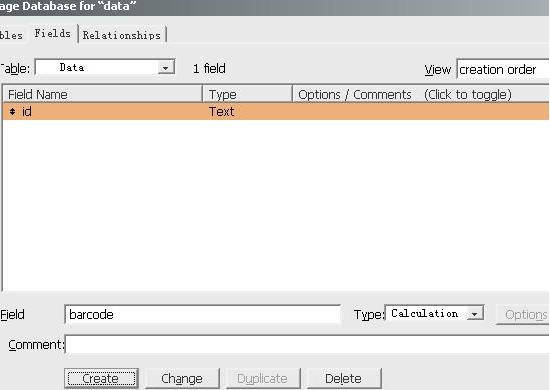
3. Choose menu File - Manage - Database. Now you can define a Calculation Field as barcode. Attention: The field Type has to be defined as Calculation in FileMaker.
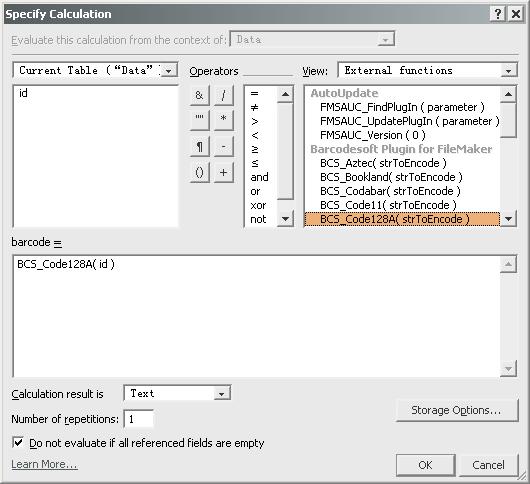
4. FileMaker will popup a Dialog to allow you Specify Calculation.
Please choose External Functions from View. Type in the Field Name as strToEncode. Choose Calculation Result as Text.
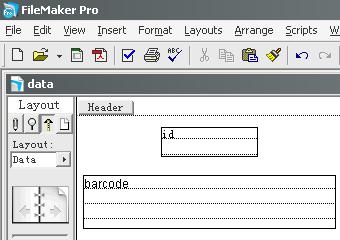
5. Now choose menu View - Layout Mode. Define two fields as instructed below.
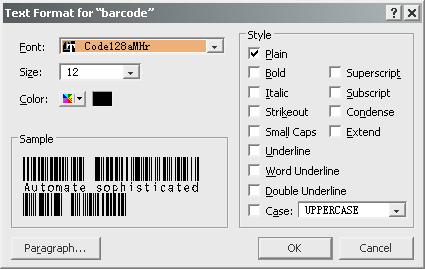
6. Right click barcode field. Choose Text Format from context menu.
Choose appropriate font typeface as instructed below. Please press CTRL + ALT when click OK button.
Choose menu View - Preview Mode and you will see barcode in FileMaker.
If you need to generate 2D barcodes in FileMaker, such as PDF417, Data Matrix, QRCode and Aztec Code, please follow these steps from 1 to 6.
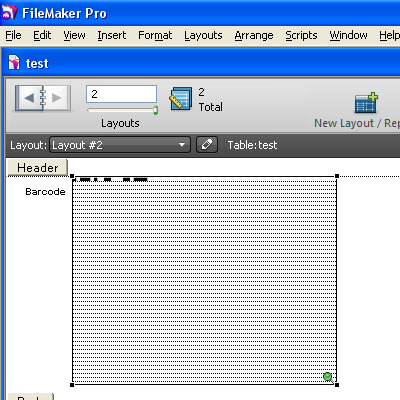
Don't forget to make the barcode field large enough to show the whole barcode as shown below.
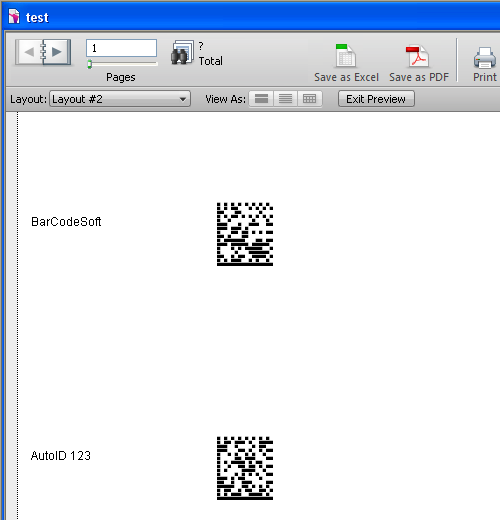
In Preview Mode, you will get a 2D barcode as shown below.
This is a table for all available barcode functions and true type fonts for FileMaker.
| FileMaker Function | Symbology | Recommended Font Typeface in FileMaker |
|---|---|---|
| FileMaker Function | Symbology | Recommended Font Typeface in FileMaker |
| BCS_Code39(DataToEncode) | Code39 accepts one string parameter | Code39mHr |
| BCS_Code39Mod43(DataToEncode) | Code39 Mod 43 | Code39mHr |
| BCS_Code39EXT(DataToEncode) | Code39 Extended | ExtCode39mHr |
| BCS_Code11(DataToEncode) | Code11 | Code11mHr |
| BCS_Code25(DataToEncode) | Code25 | Code25mHr |
| BCS_I25(DataToEncode) | Interleaved 2of5 | I25mHr |
| BCS_I25Mod10(DataToEncode) | Interleaved 2of5 with check digit | I25mHr |
| BCS_MSI(DataToEncode) | MSI / Plessey | MSImHr |
| BCS_Code93(DataToEncode) | Code93 | Code93mHr |
| BCS_Codabar(DataToEncode) | Codabar | CodabarmHr |
| BCS_Telepen(DataToEncode) | Telepen | TelepenMHr |
| BCS_UPCA(DataToEncode) | UPC-A | UpcEanM |
| BCS_UPCE(DataToEncode) | UPC-E | UpcEanM |
| BCS_EAN13(DataToEncode) | EAN-13 | UpcEanM |
| BCS_EAN8(DataToEncode) | EAN-8 | UpcEanM |
| BCS_Bookland(DataToEncode) | ISBN or Bookland | UpcEanM |
| BCS_Code128A(DataToEncode) | Code128A | Code128aMHr |
| BCS_Code128B(DataToEncode) | Code128B | Code128bMHr |
| BCS_Code128C(DataToEncode) | Code128C | Code128cMHr |
| BCS_UCCEAN128(DataToEncode) | GS1-128 (UCC/EAN-128) | Code128M |
| BCS_PDF417(DataToEncode) | PDF417 is a stacked 2D barcode. | BcsPDF417 |
| BCS_DataMatrix(DataToEncode) | Data Matrix is one of the most widely used 2D barcode symbologies. | BcsDataMatrix |
| BCS_QRCode(DataToEncode) | QR Code is widely used in all industries. | BcsQrcode |
| BCS_Aztec(DataToEncode) | Aztec code is a major 2D bar code. | BcsAztec |